Every tool, built in
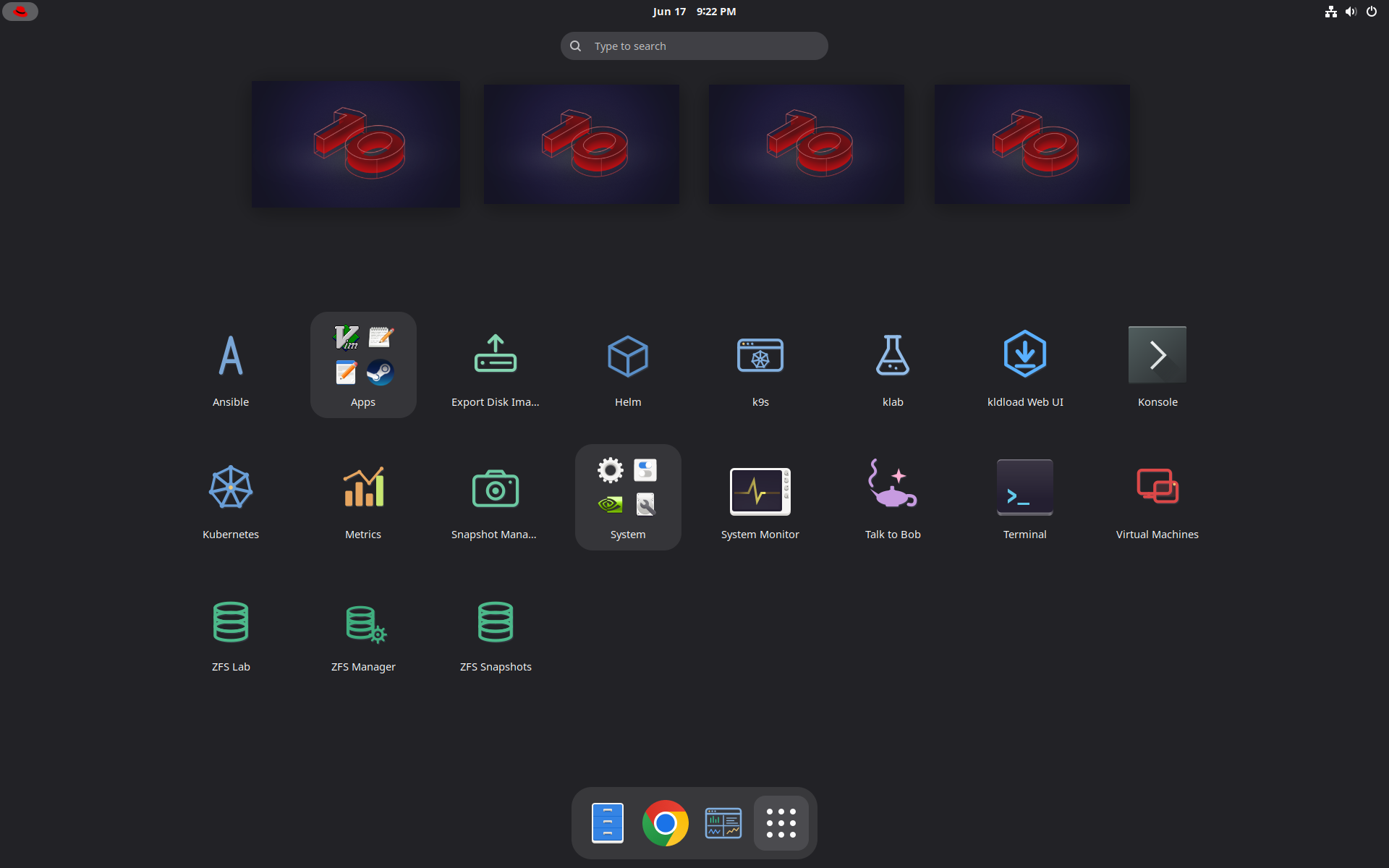
Nothing here is an add-on. Every application below ships on the Kernel-Loaded Desktop, wired to the same ZFS pool and the same :8443 control plane. Most open as their own native app window with the correct dock icon — not a browser tab. Browse by category; click any shot to enlarge.
Appliances
Thirteen upstream projects as one-click tiles in vmxplore — Web Stack, LAMP, WriteFreely, Jellyfin, Plex, Seedbox, Icecast, SDR Station, Tvheadend, AdGuard Home, Syncthing, and the VDI and RDP desktops. Each boots as its own VM on its own ZFS pool, verified by its own checks and enrolled on the estate, and hands you a URL. A built tile clones as Firecracker microVMs in about 200 ms. The catalogue on one card →
Control plane
One URL, one TLS cert, every internal service behind it. The web UI is the front door to the whole machine.
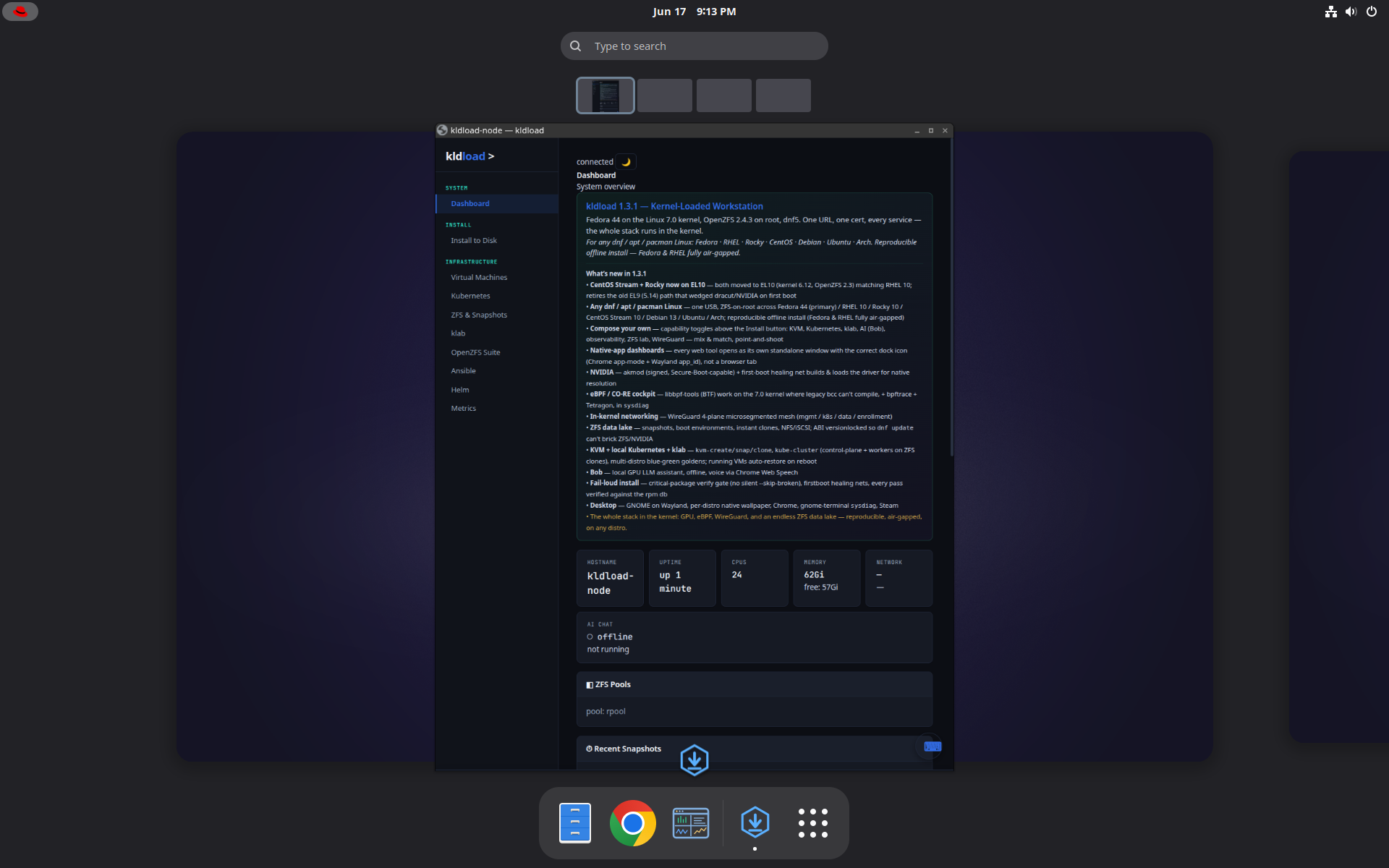
kldload Web UI
https://<host>:8443The single-pane control plane: live system overview, ZFS pools, VMs, Kubernetes, klab, metrics and the installer — all fronted by one nginx HTTP/2 TLS reverse proxy that also carries Grafana, Headlamp, k9s and the libvirt console.
Storage & ZFS
The machine is ZFS-on-root. Snapshots, replication, boot environments and pool health — all point-and-shoot, no zfs syntax required.
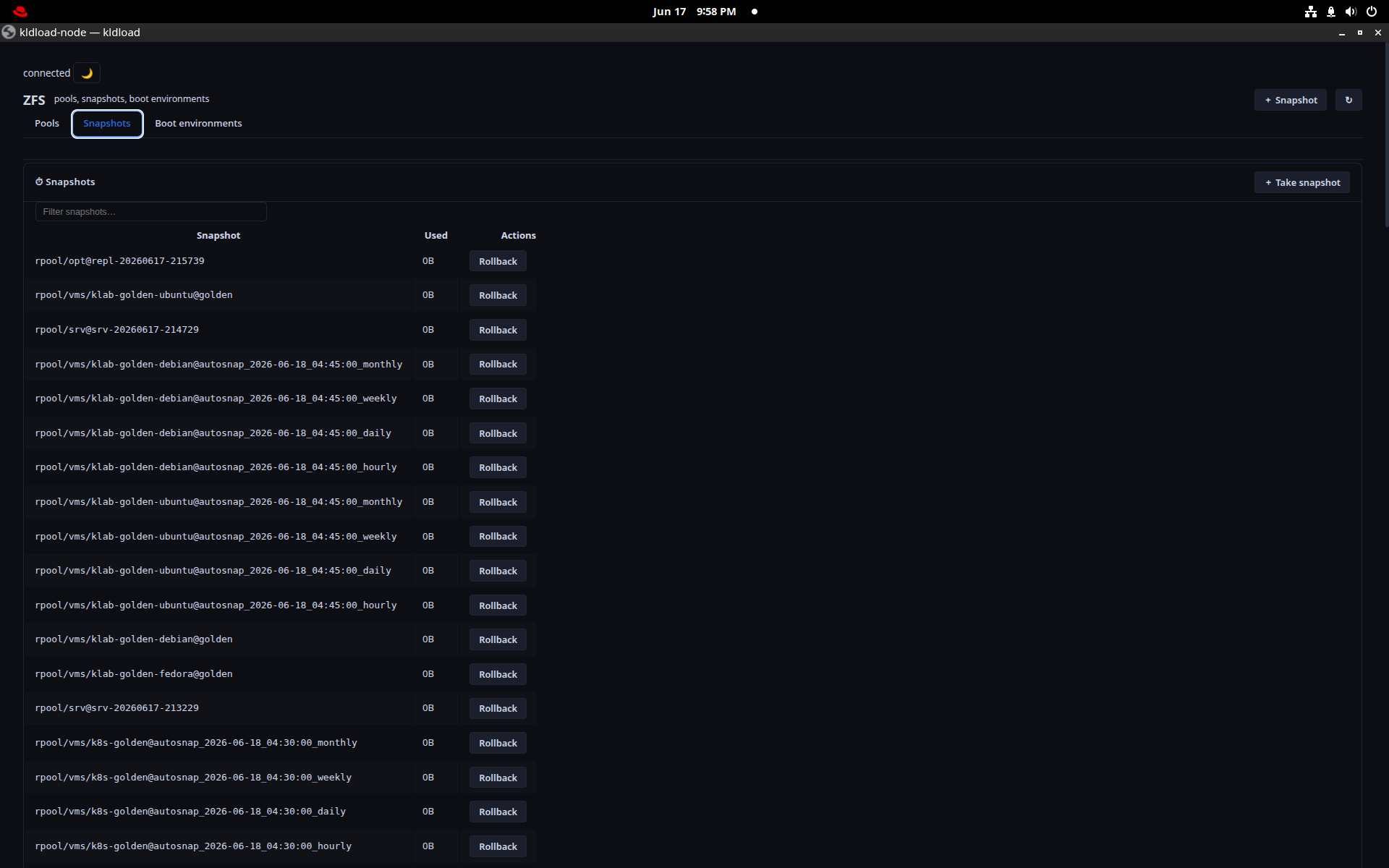
ZFS Snapshots (ksnap)
ksnapEvery snapshot on the box with a one-click Rollback. The same engine sanoid uses for automatic 15-min / hourly / daily / monthly / yearly retention — the dense list is what “automatic” looks like after a day of uptime.
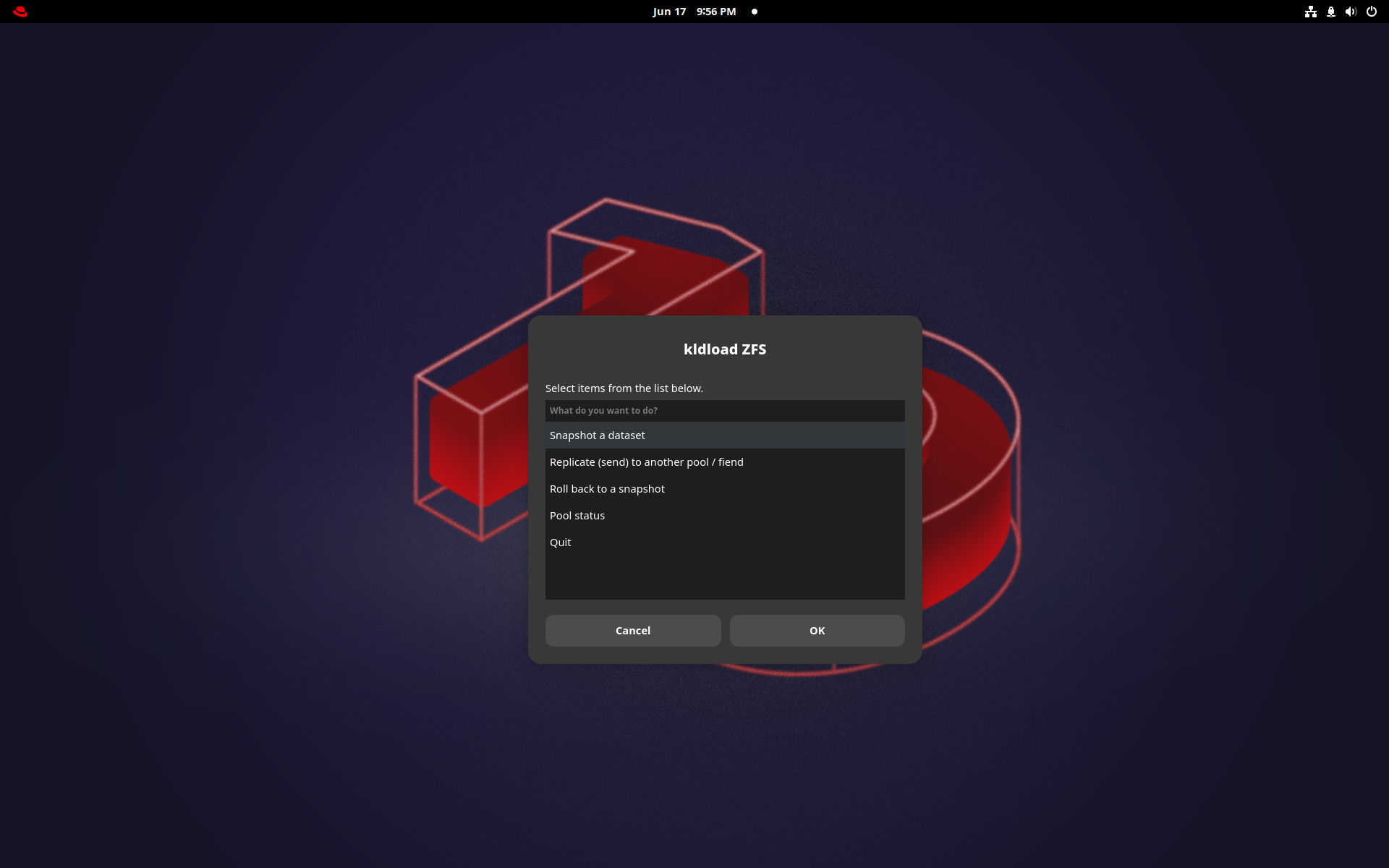
ZFS Manager
A point-and-shoot front end for everyday pool and dataset work — snapshot a dataset, replicate, roll back, check pool status — without dropping to a shell.
ksnap for scripting.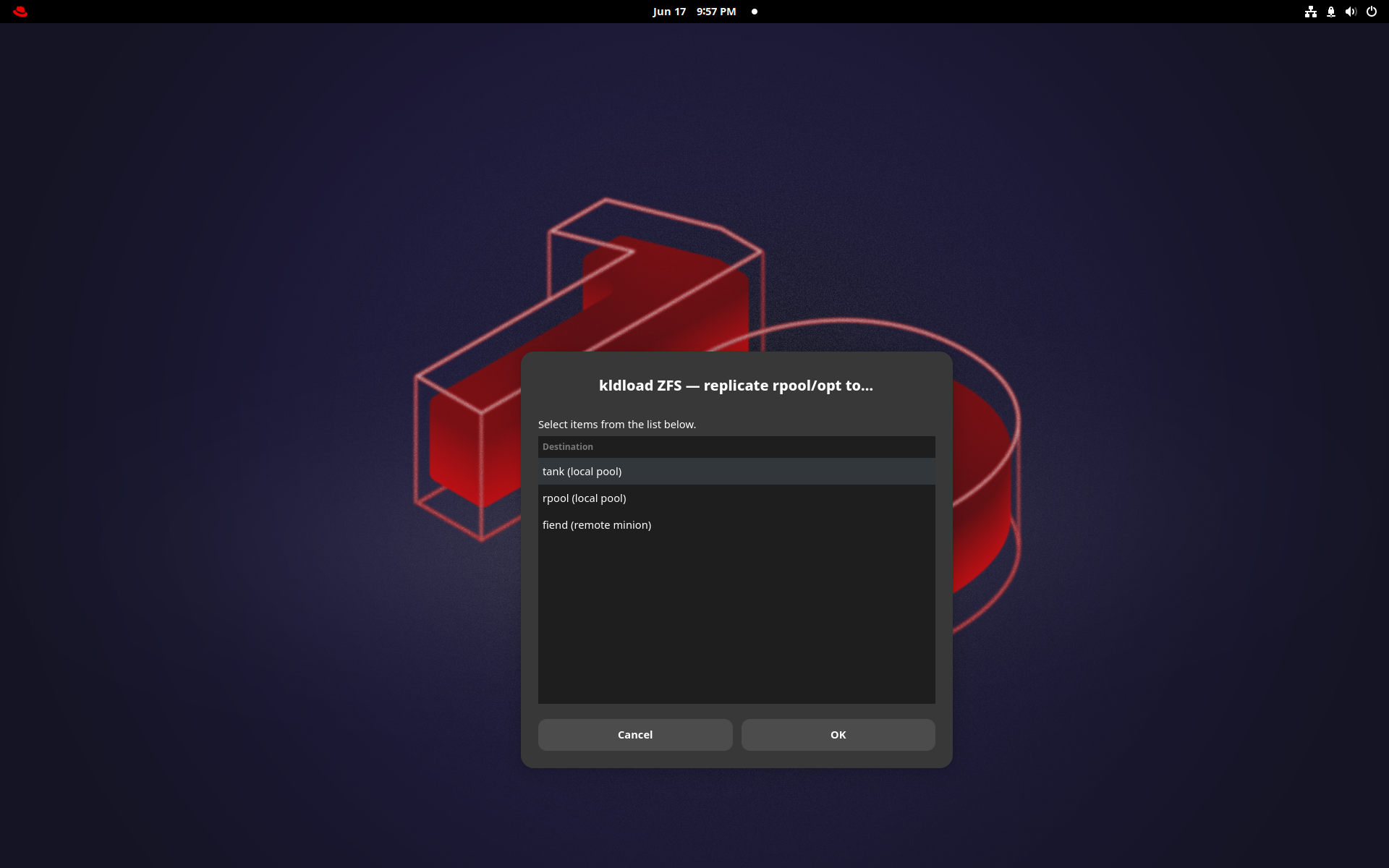
Point-and-shoot replication
Replicate any dataset to a second pool or a remote host in a couple of clicks — syncoid incremental send/recv underneath. Backups that are just snapshots shipped over the wire; no agent, no vendor.
Boot Environments
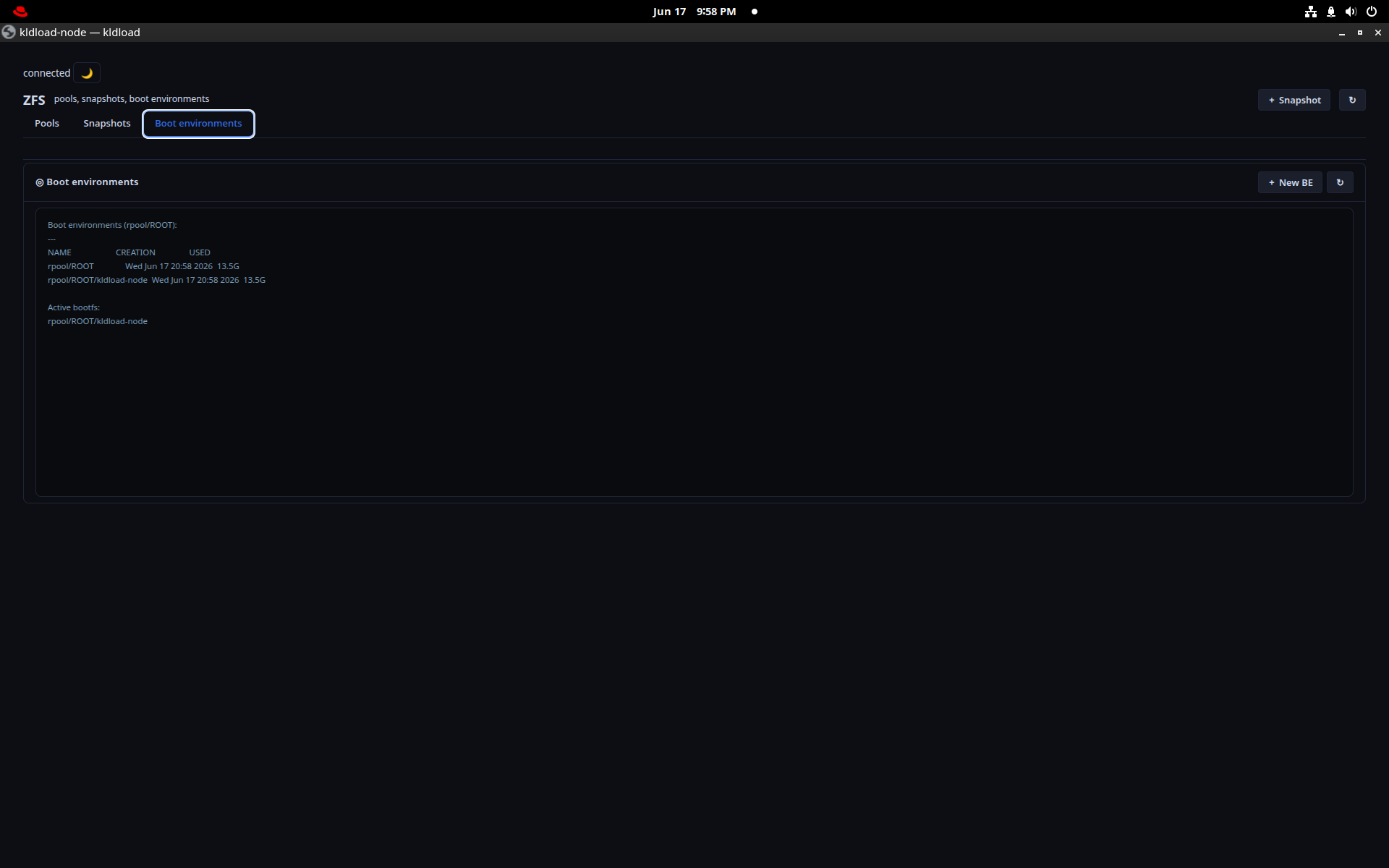
Every boot environment is a ZFS snapshot. Browse them here; pick a previous one from ZFSBootMenu at boot and you’re back in seconds — no reinstall after a bad upgrade.
ZFS Pool Health
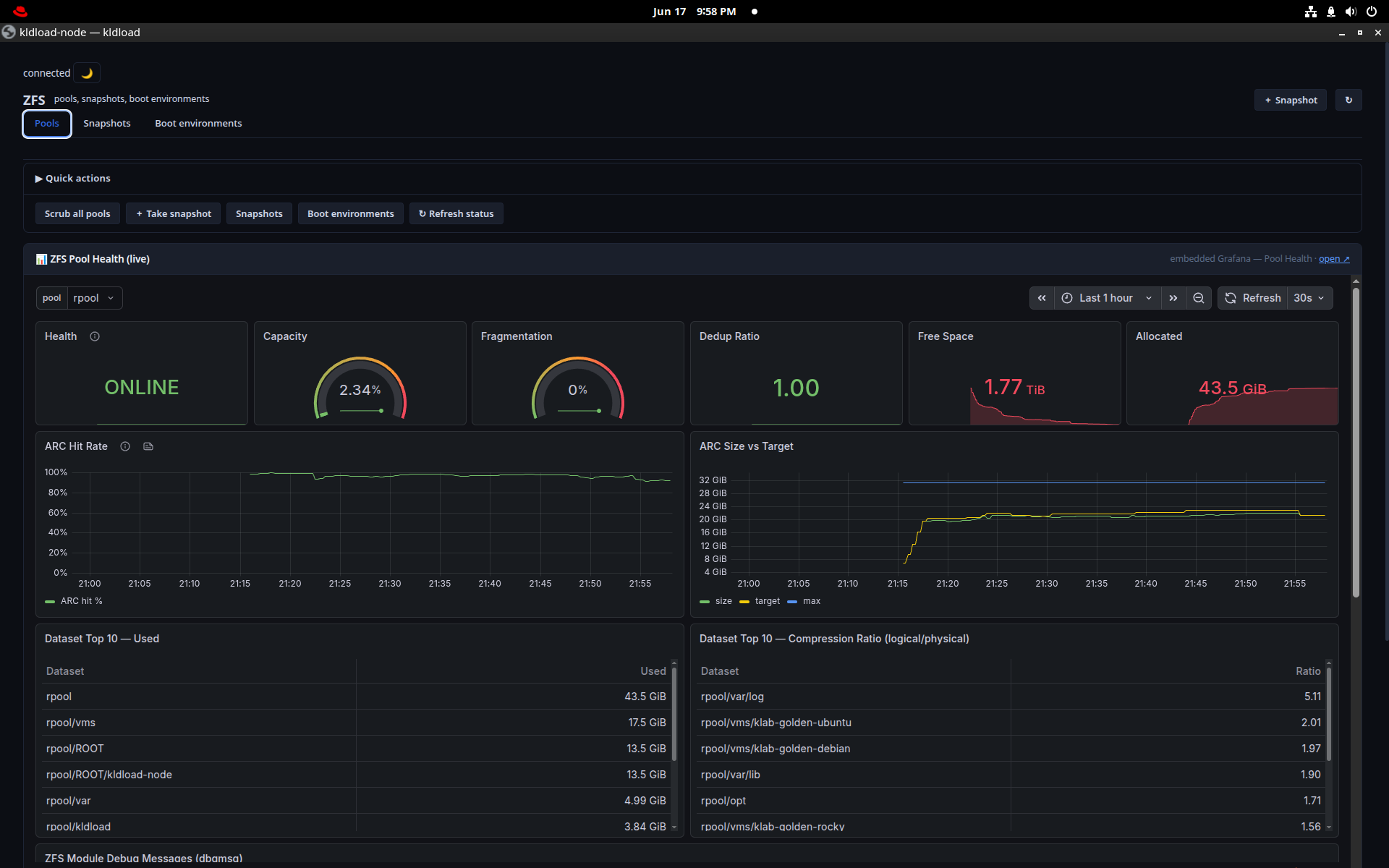
Live pool telemetry: ONLINE state, capacity, fragmentation, dedup ratio, free space, ARC size vs target, top datasets by use and compression ratio — a Grafana board fed straight from the pool.
Virtualization
A KVM/libvirt hypervisor tuned for ZFS from the zvol up — every VM disk is a ZFS dataset, so snapshot, clone and replicate are native.
Virtual Machines
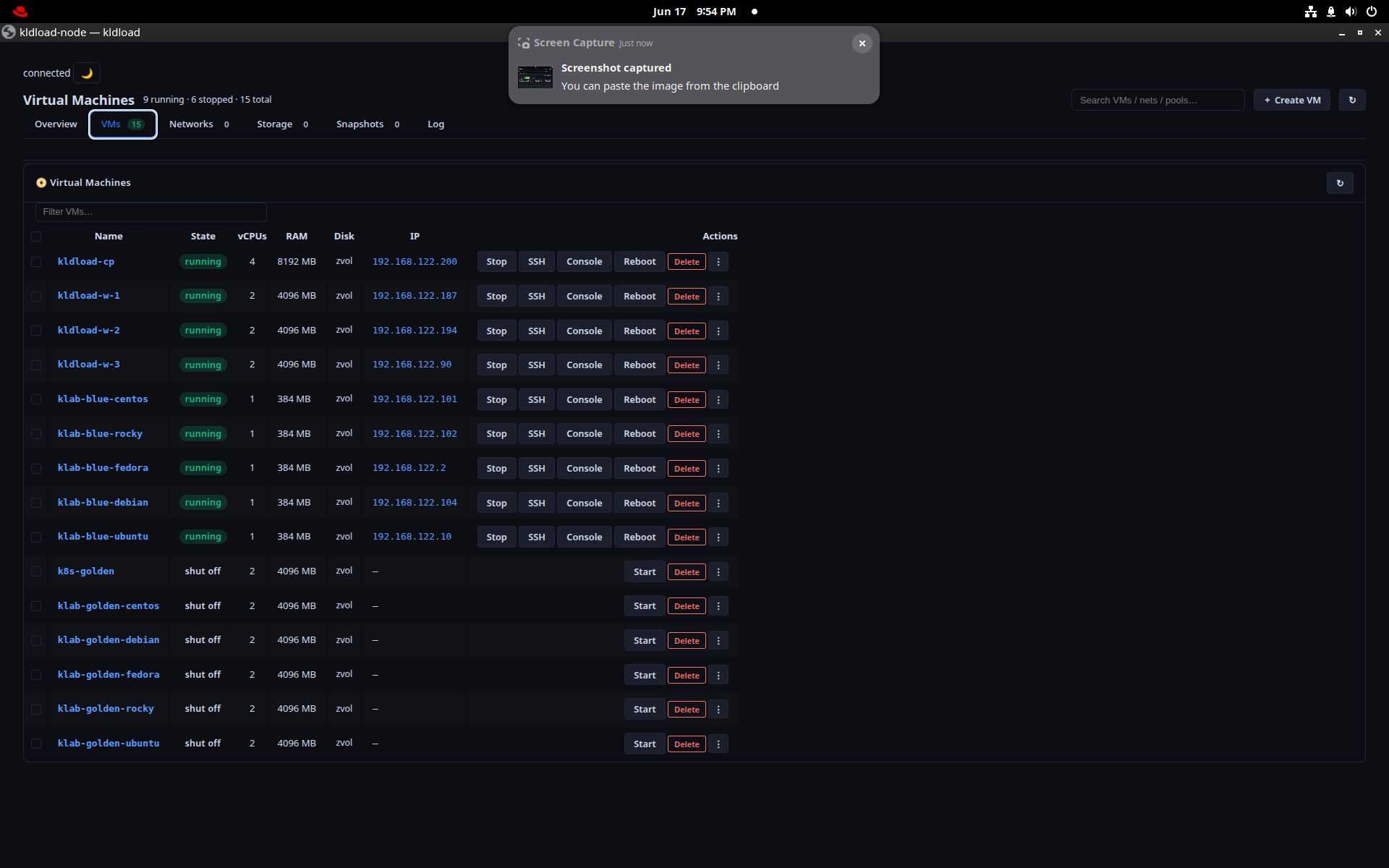
Inventory, networks, storage pools, per-VM Snap / Rollback / Clone, SSH and an embedded console — every VM on its own ZFS zvol. Running VMs auto-restore after a host reboot; stopped stay stopped.
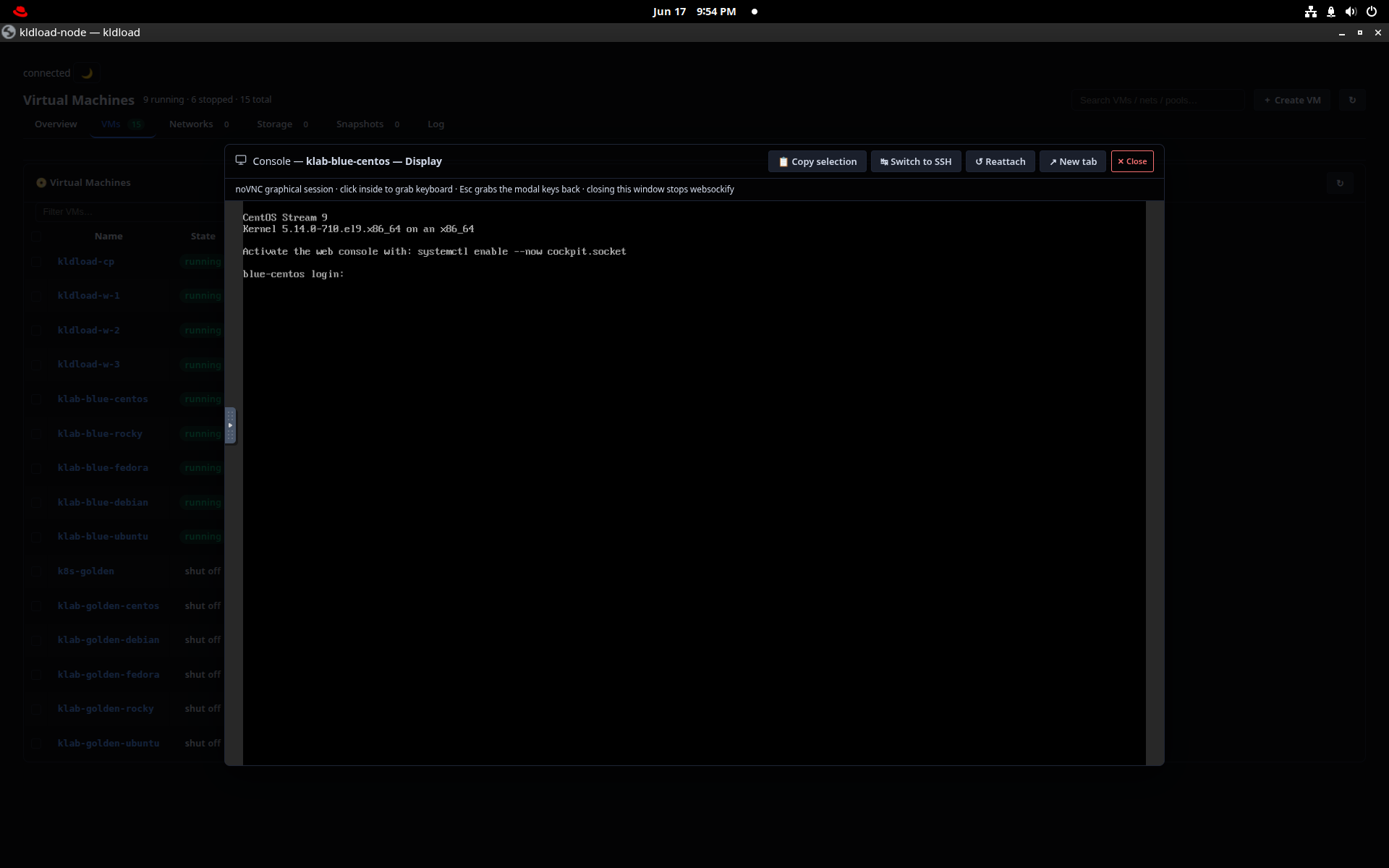
VM Console
A full serial console to any VM, embedded right in the web UI over the same ttyd session — no separate VNC client, no extra port to open.
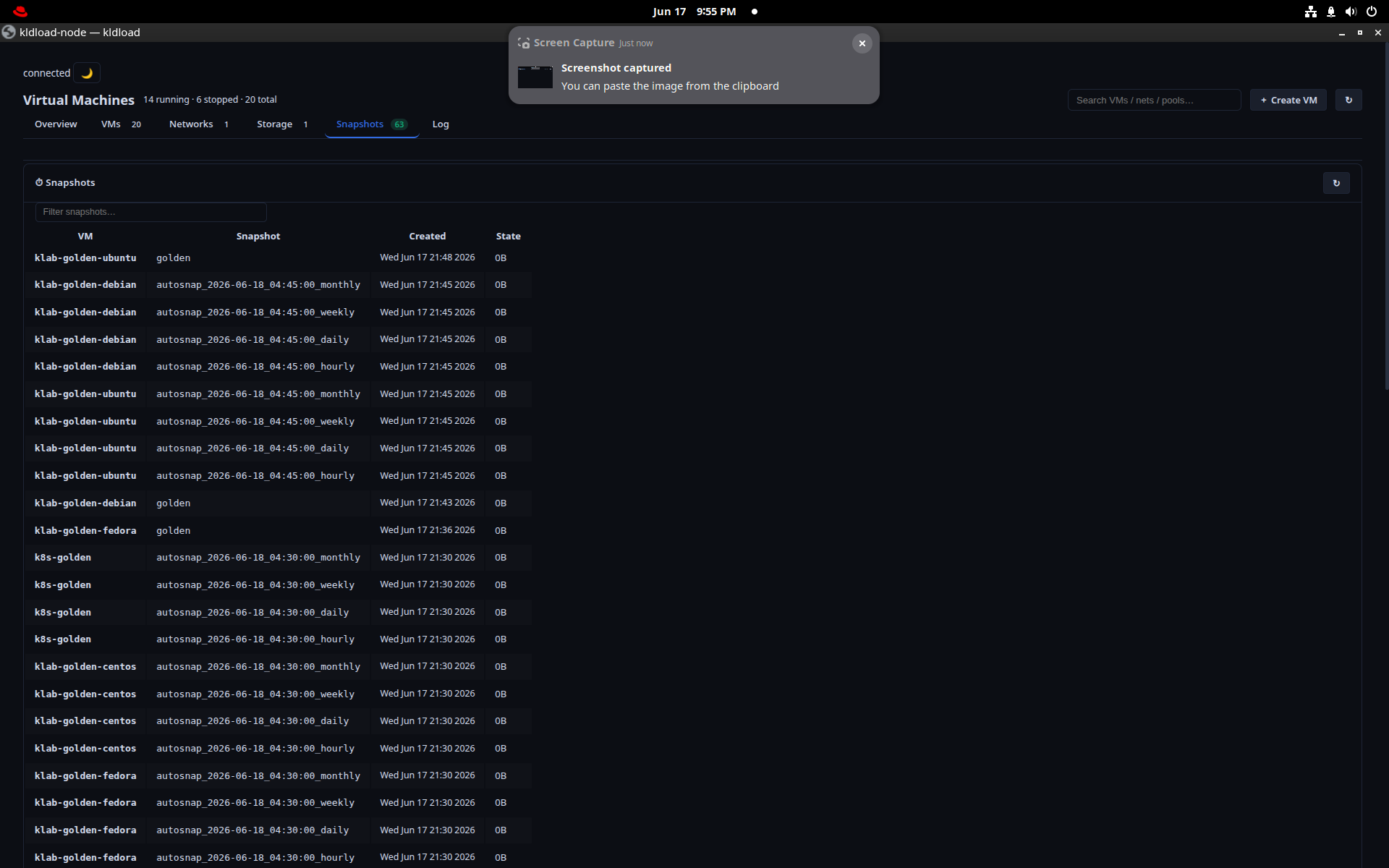
VM Snapshots & Clone
Automatic per-VM zvol snapshots on a sanoid schedule, plus instant copy-on-write clones (kvm-clone) — a second identical machine in the time it takes to type the name.
Kubernetes
A real 1 control-plane + 3 worker cluster on ZFS-clone VMs, with a Cilium eBPF datapath and ZFS-backed persistent volumes.
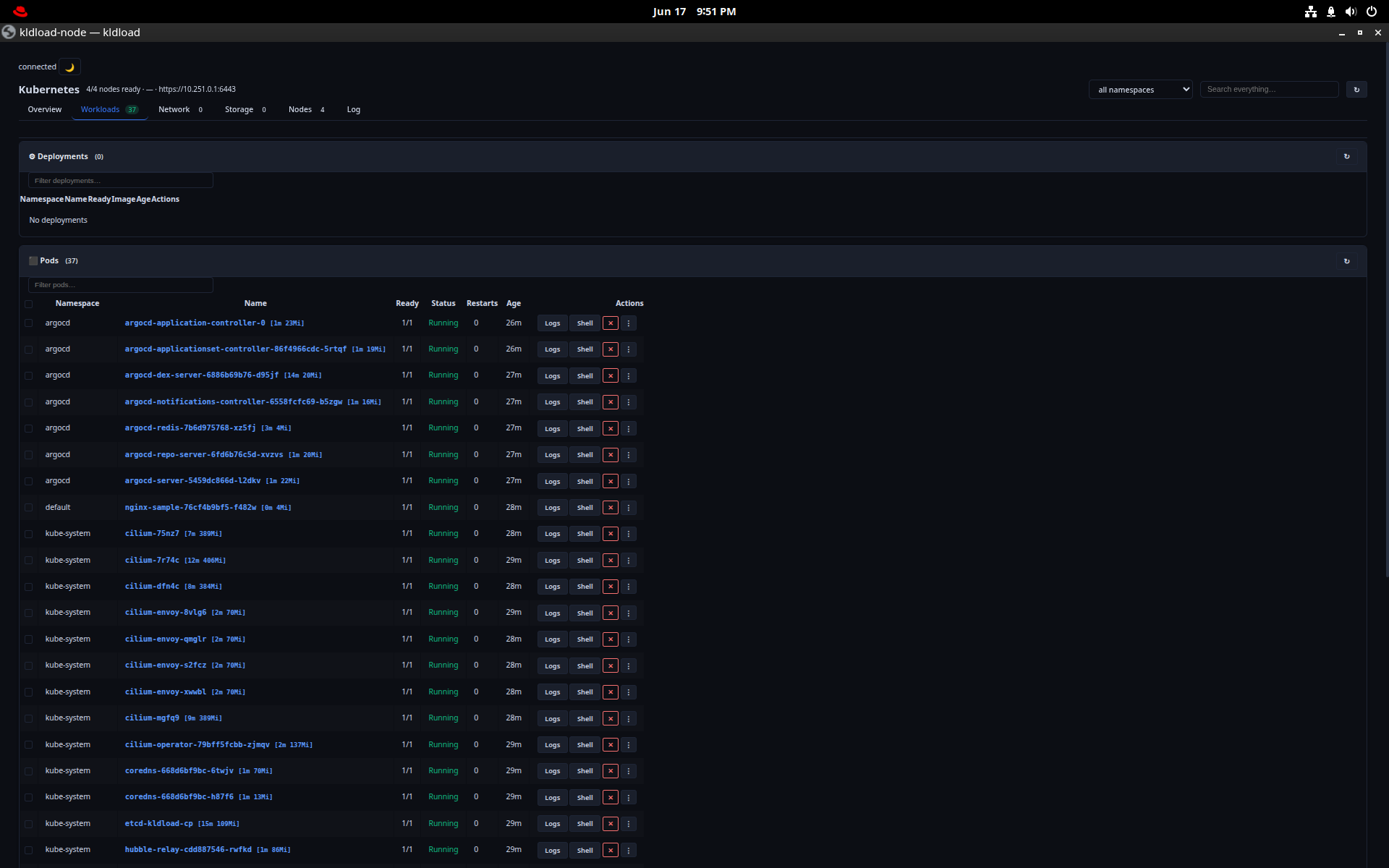
Kubernetes dashboard
Overview (Tetragon + Hubble panels), Workloads, Network (the full eBPF datapath), Storage (ZFS-backed PVCs / PVs / VolumeSnapshots), and Nodes — control plane and workers with live resources.
VolumeSnapshot here is a zfs snapshot underneath — same snapshot story as the host.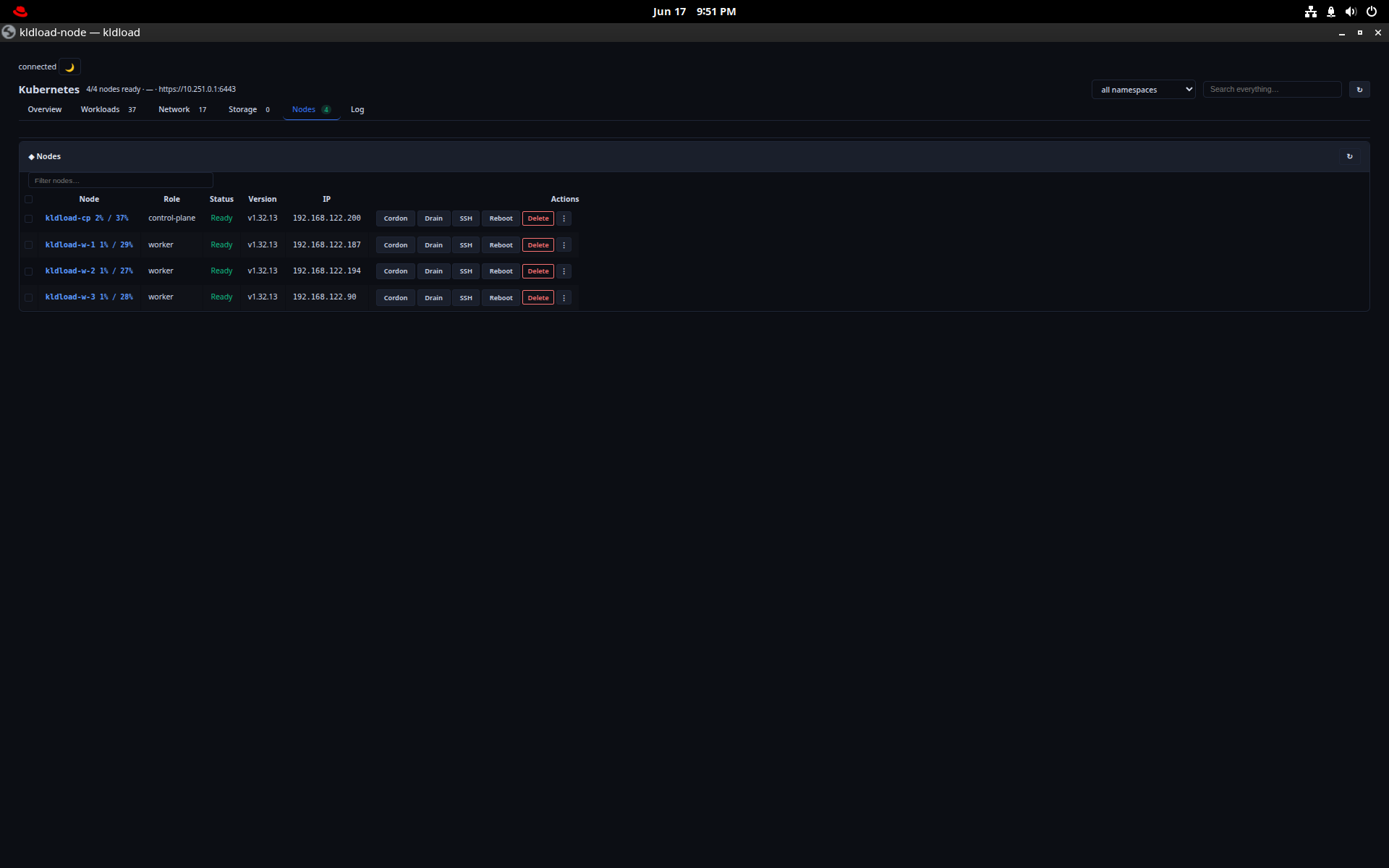
kube-cluster
kube-cluster --workers 3Bootstraps the whole cluster from ZFS clones: Cilium v1.16.5 in eBPF mode (no kube-proxy), Hubble, Tetragon, MetalLB, and a dual WireGuard mesh (mgmt + data planes). Tick Kubernetes at install and this runs for you.
kubectl get nodes shows 4.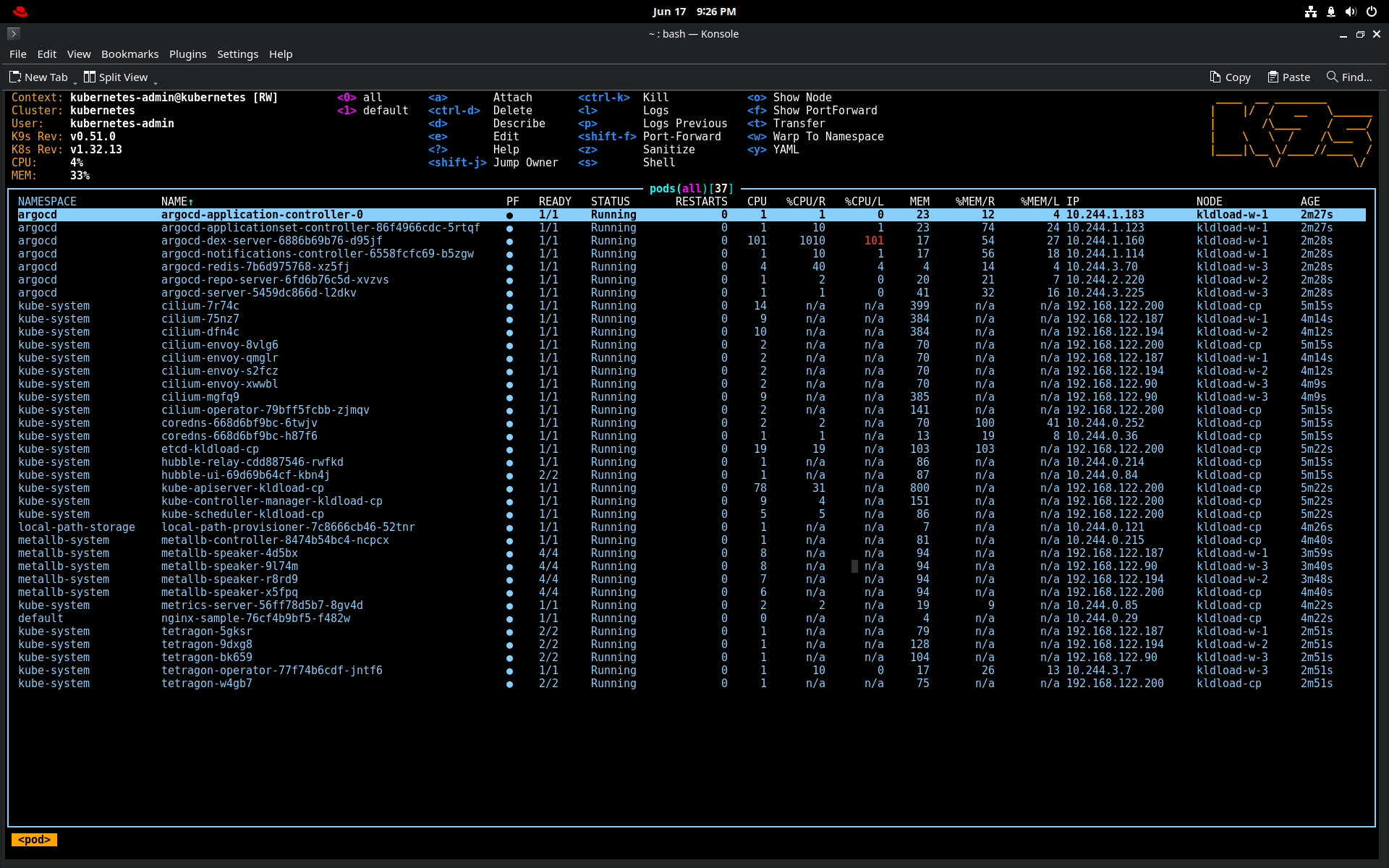
k9s
k9sThe terminal Kubernetes UI for fast navigation of pods, logs, exec and resource editing — embedded in the web UI via ttyd, or straight from a shell.
: then a resource (:deploy, :svc) jumps anywhere instantly.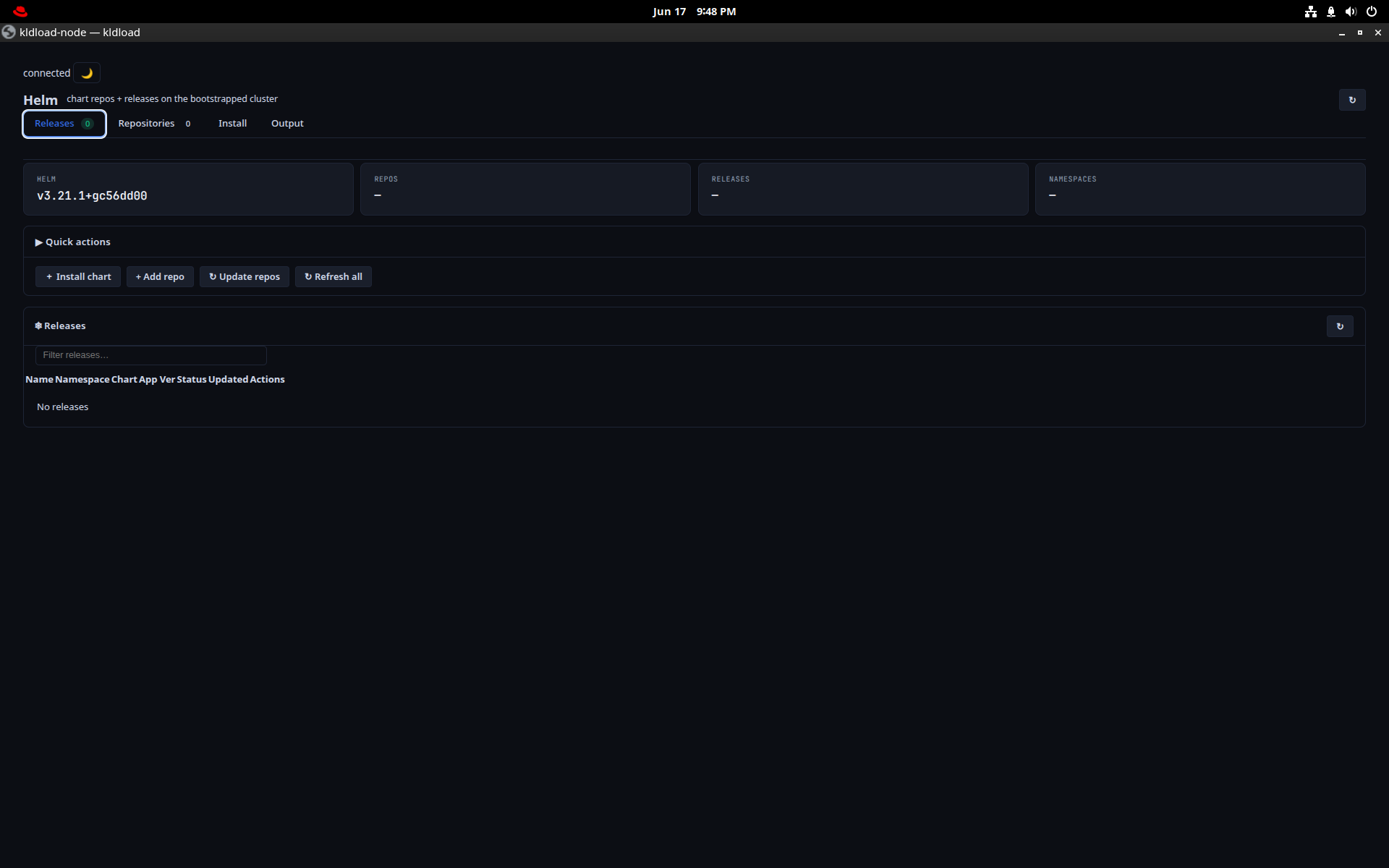
Helm
helmPackage management for the cluster — browse repositories, install and upgrade charts against the local cluster from a desktop window.
helm list -A.Automation & Lab
Reproducible environments and configuration management — instant blue-green clone promotion and Ansible, both built in.
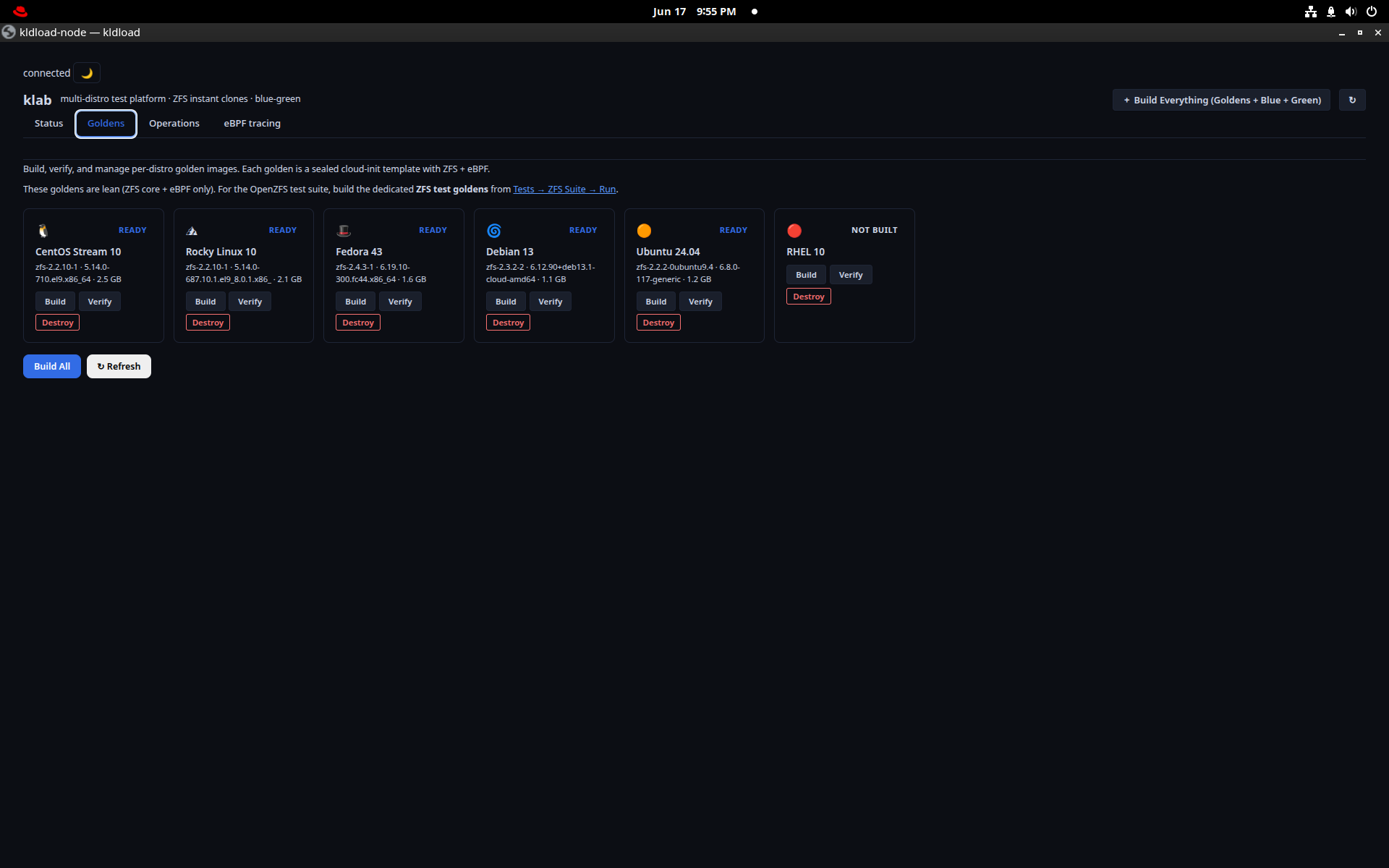
klab — goldens
klab golden allBuild a golden image once per distro — CentOS, Rocky, Fedora, Debian, Ubuntu, RHEL — then every deployment is a ZFS clone of that exact golden (~75 ms). No re-install means no configuration drift.
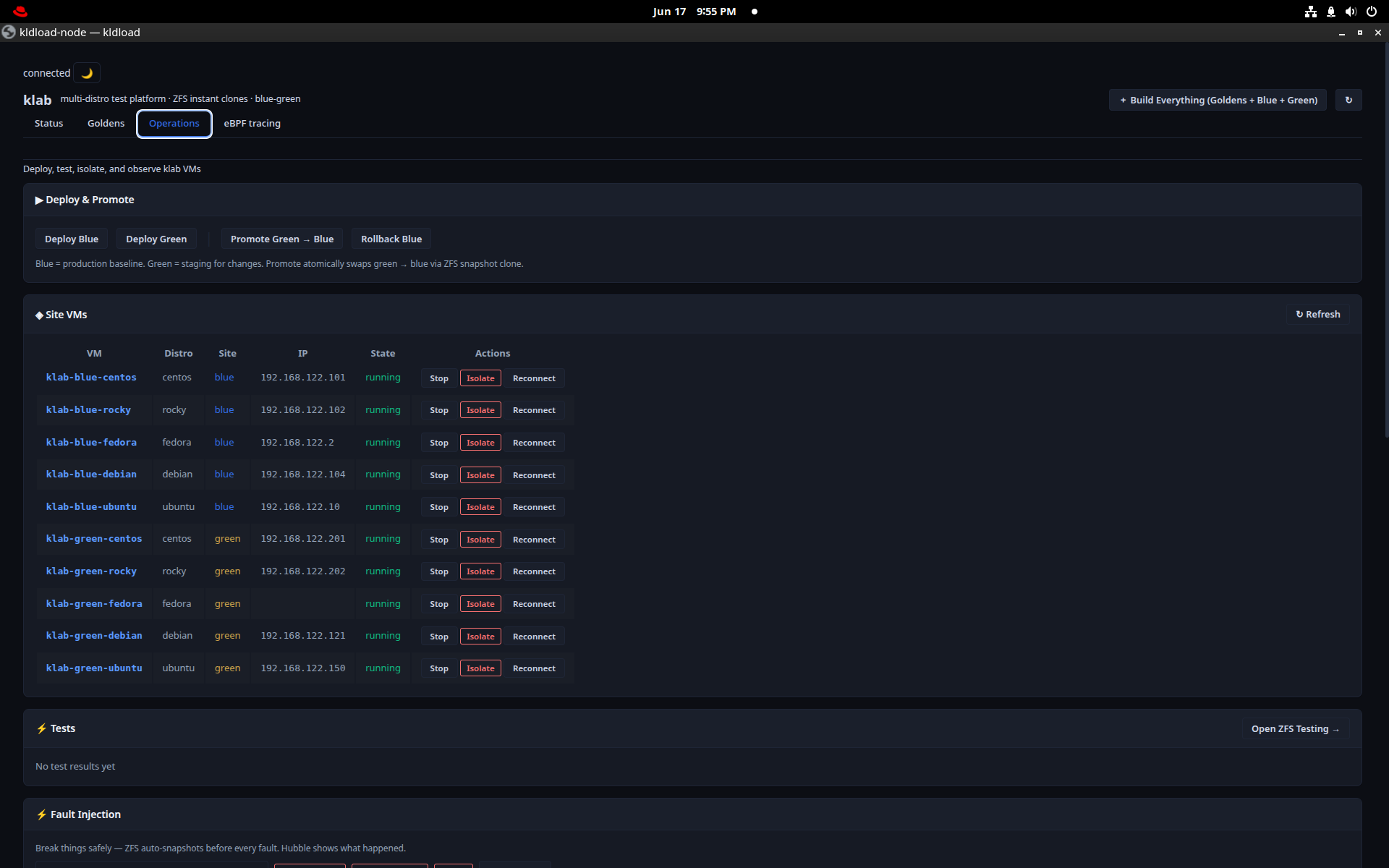
klab — blue/green
Deploy blue or green from the goldens, promote green to blue with an atomic pointer swap, roll back to a snapshot, and fire pre-built fault-injection scenarios to rehearse recovery.
klab promote green is instant and reversible — cutover without a maintenance window.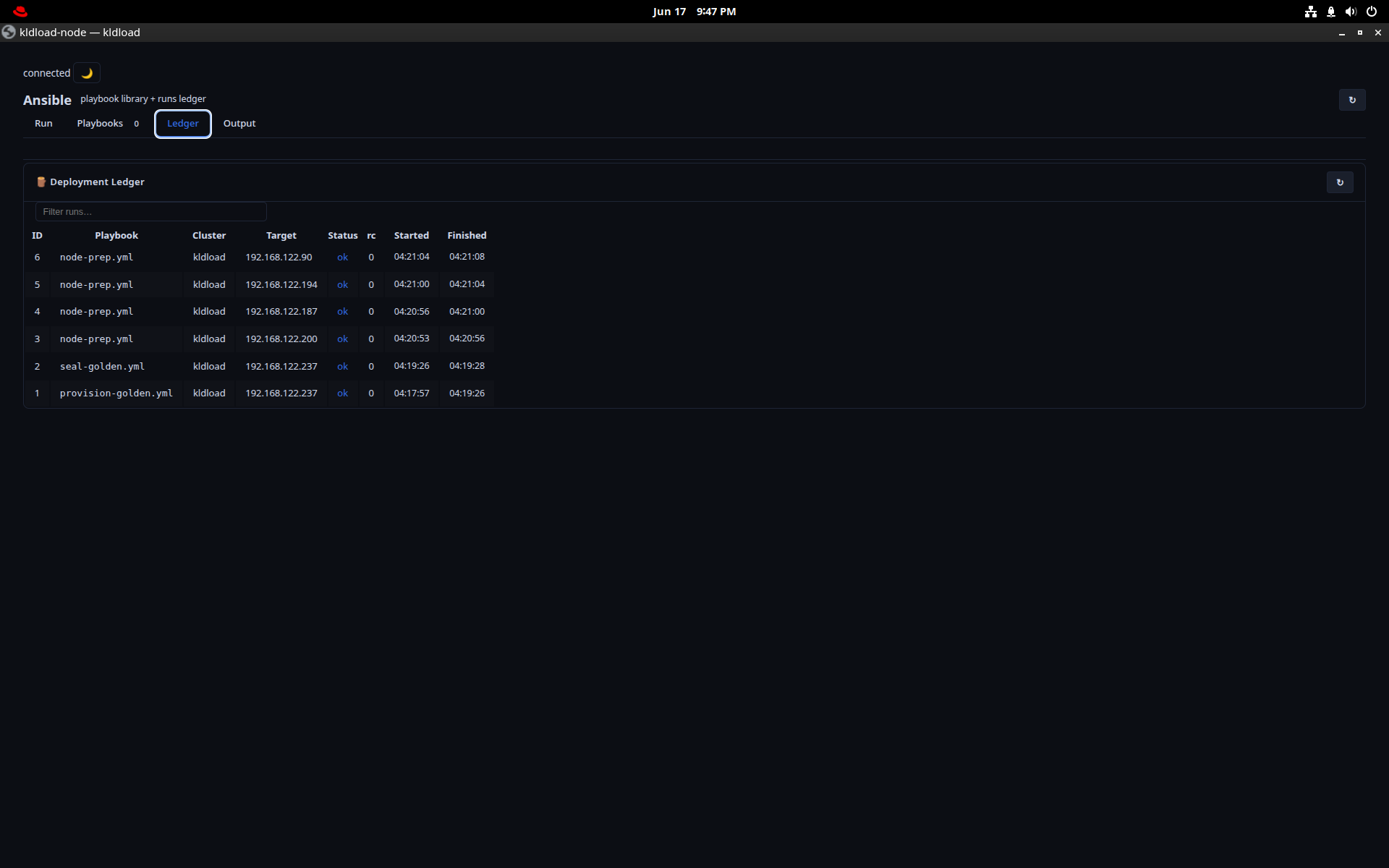
Ansible
Run playbooks against your VMs and nodes from the desktop, with a ledger of every run. The installer bakes an admin SSH key into every install, so hosts are peer-reachable out of the box.
Observability
Metrics dashboards for the whole stack, plus a realtime eBPF cockpit that turns the kernel inside out — the dev companion for testing and troubleshooting.
Metrics
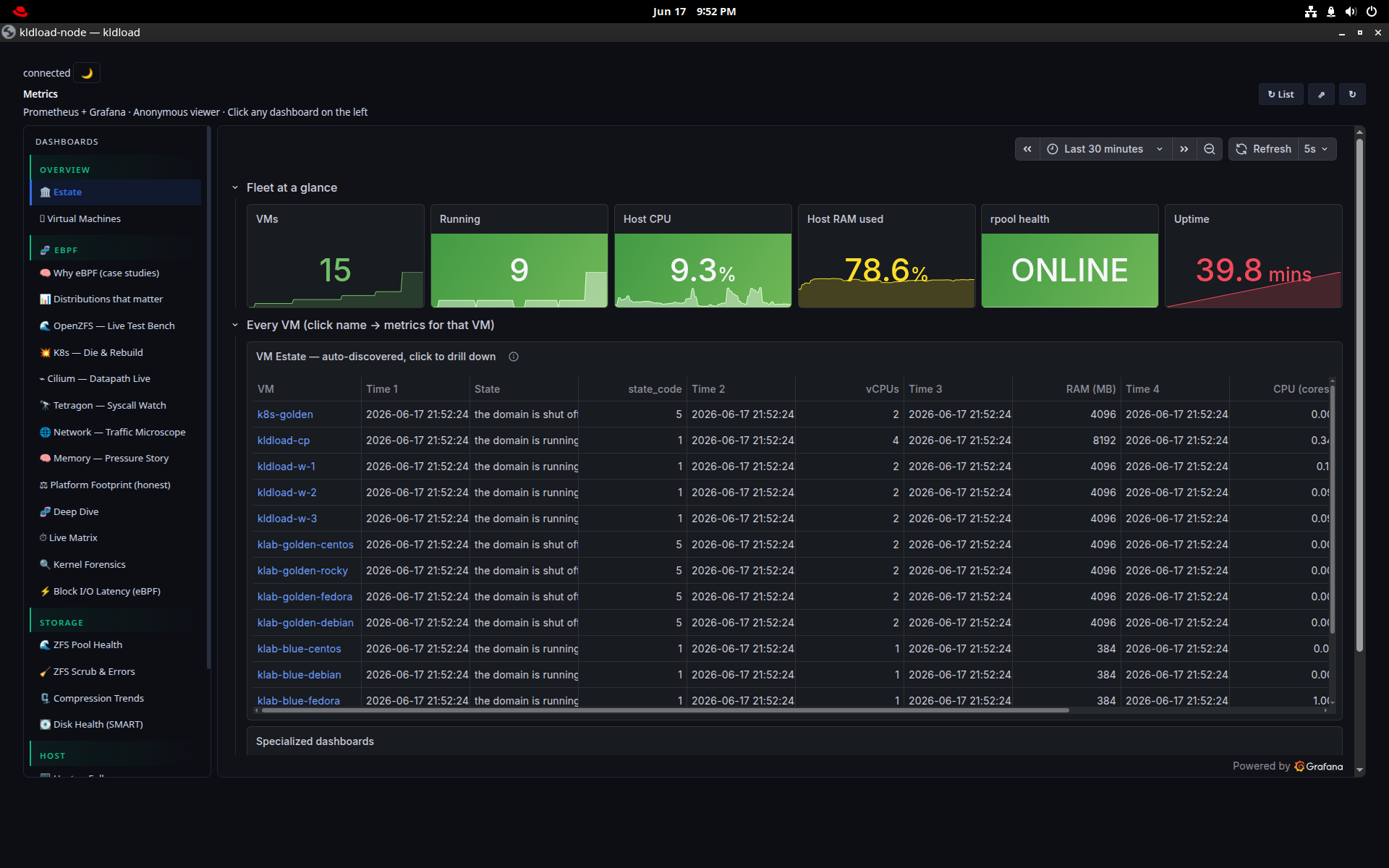
Prometheus + Grafana + Tetragon, embedded: fleet-at-a-glance, per-VM and per-process panels, the Cilium datapath, ZFS ARC and pool stats, and eBPF-sourced security events — all on the :8443 proxy.
sysdiag — eBPF cockpit
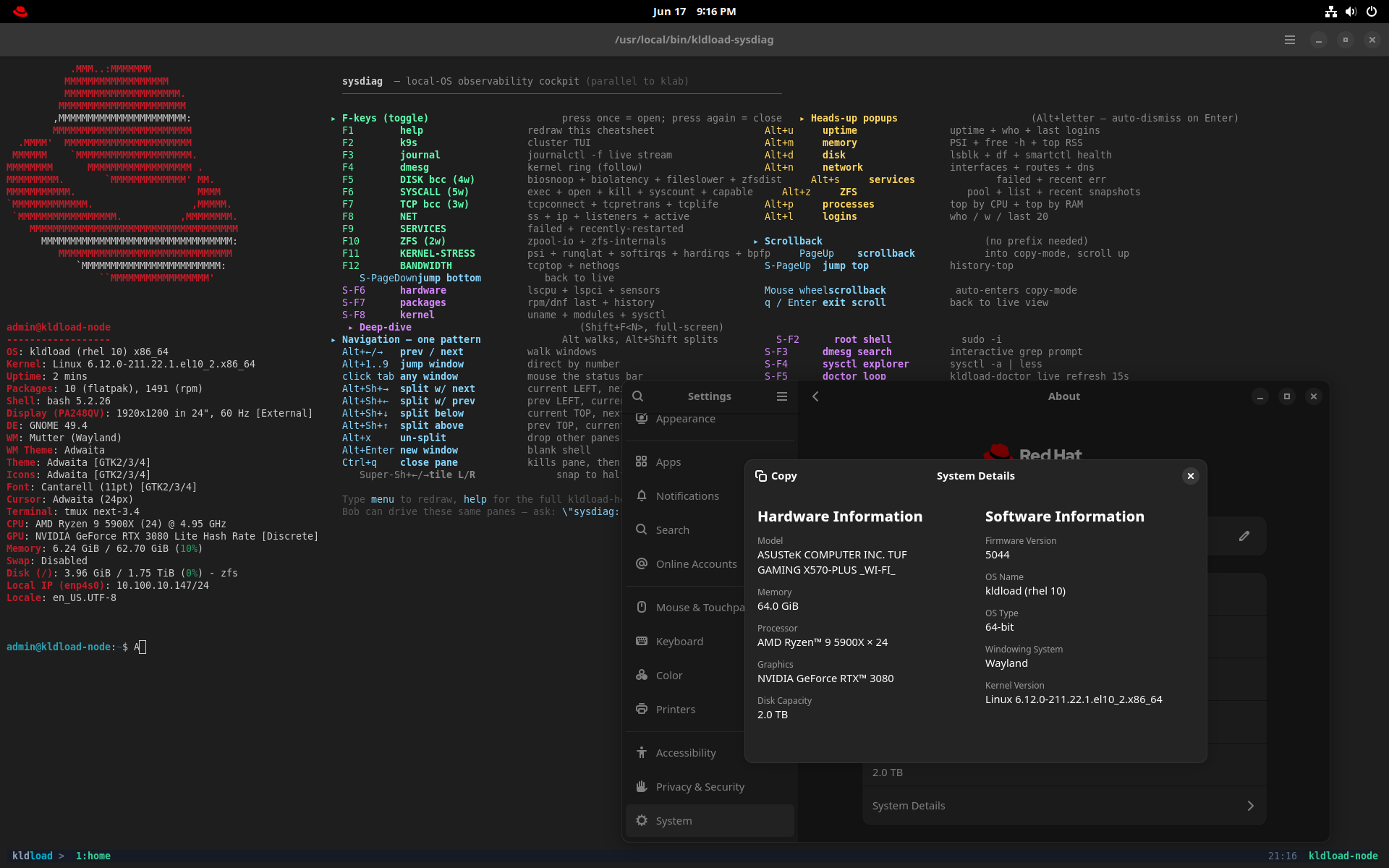
kldload-sysdiagA tmux cockpit of live eBPF (CO-RE/BTF, works on the 7.0 kernel). F-keys toggle panels: F5 disk (biosnoop/biolatency/fileslower/zfsdist), F6 syscalls (execsnoop/opensnoop/killsnoop/syscount/capable), F7 TCP (tcpconnect/tcpretrans/tcplife), F8 net, F10 ZFS, F12 bandwidth.
AI
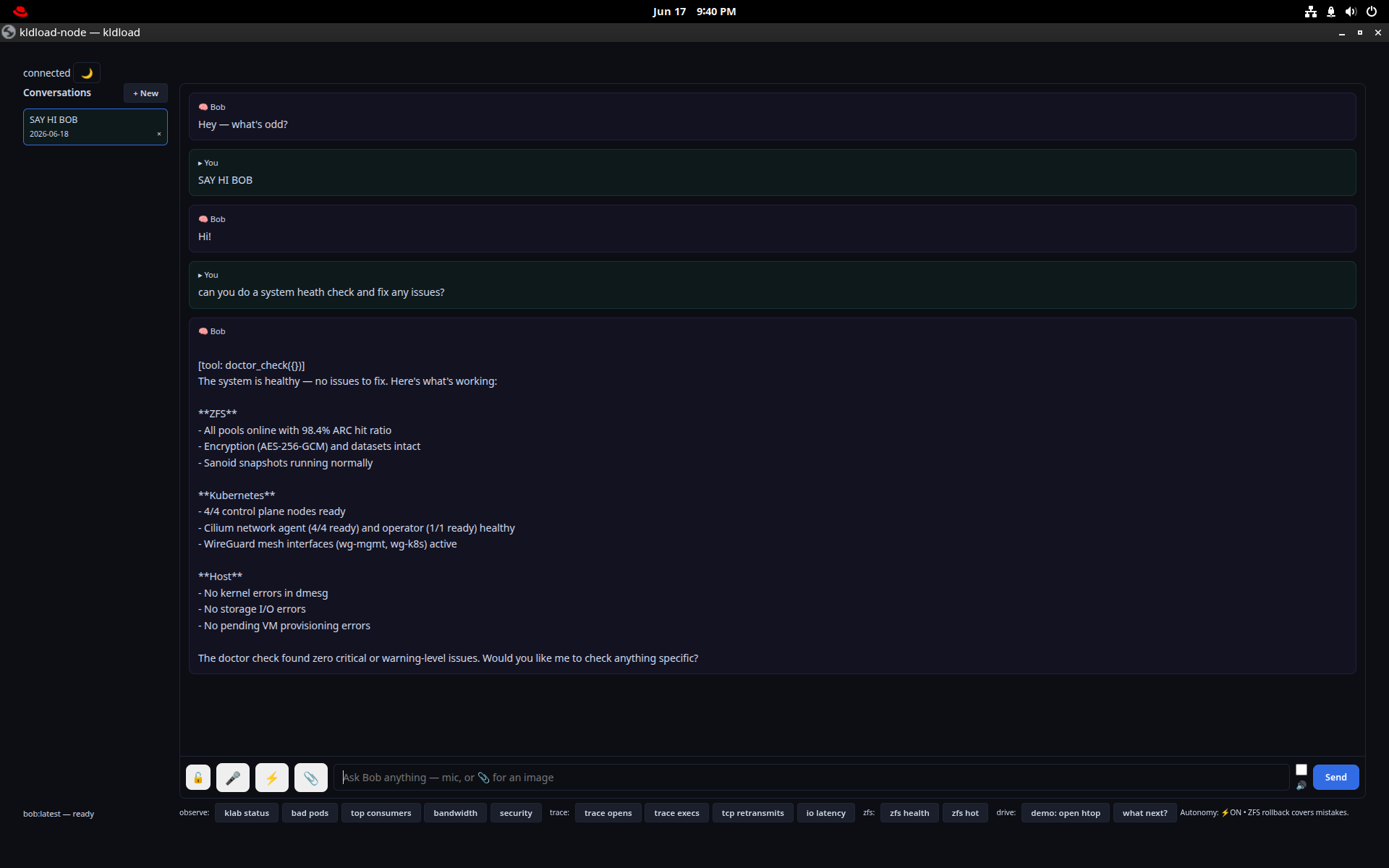
Bob — a local, GPU-resident LLM served by Ollama. Fully offline; nothing leaves the box.
Bob
A local LLM assistant running on the GPU via Ollama, offline by design. Ask it about the system, ZFS, KVM or Kubernetes with live context — no API key, no data leaving the machine. A bobctl toggle hands the GPU back to gaming or a VM when you need the VRAM.
Desktop
GNOME on Wayland with the apps a developer actually reaches for — already installed, already configured.
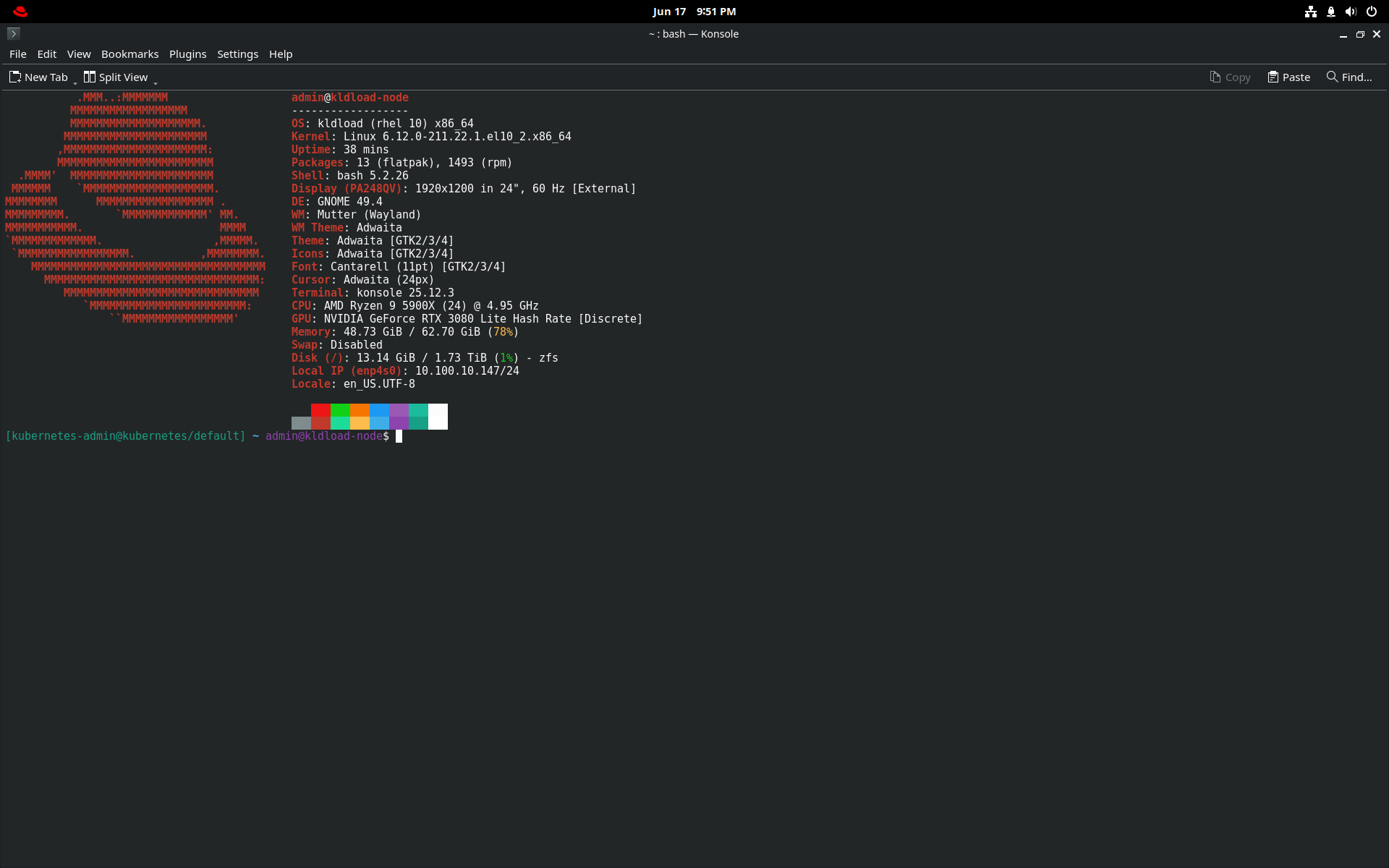
Console
The terminal, with a kldload system panel (kernel, GPU, ZFS, IP) on tap. Navigation is one modifier per job: Alt+arrows move between panes, Alt+number jumps windows, Ctrl+Q closes a pane.
Alt+Q closes the window the same way across the whole desktop.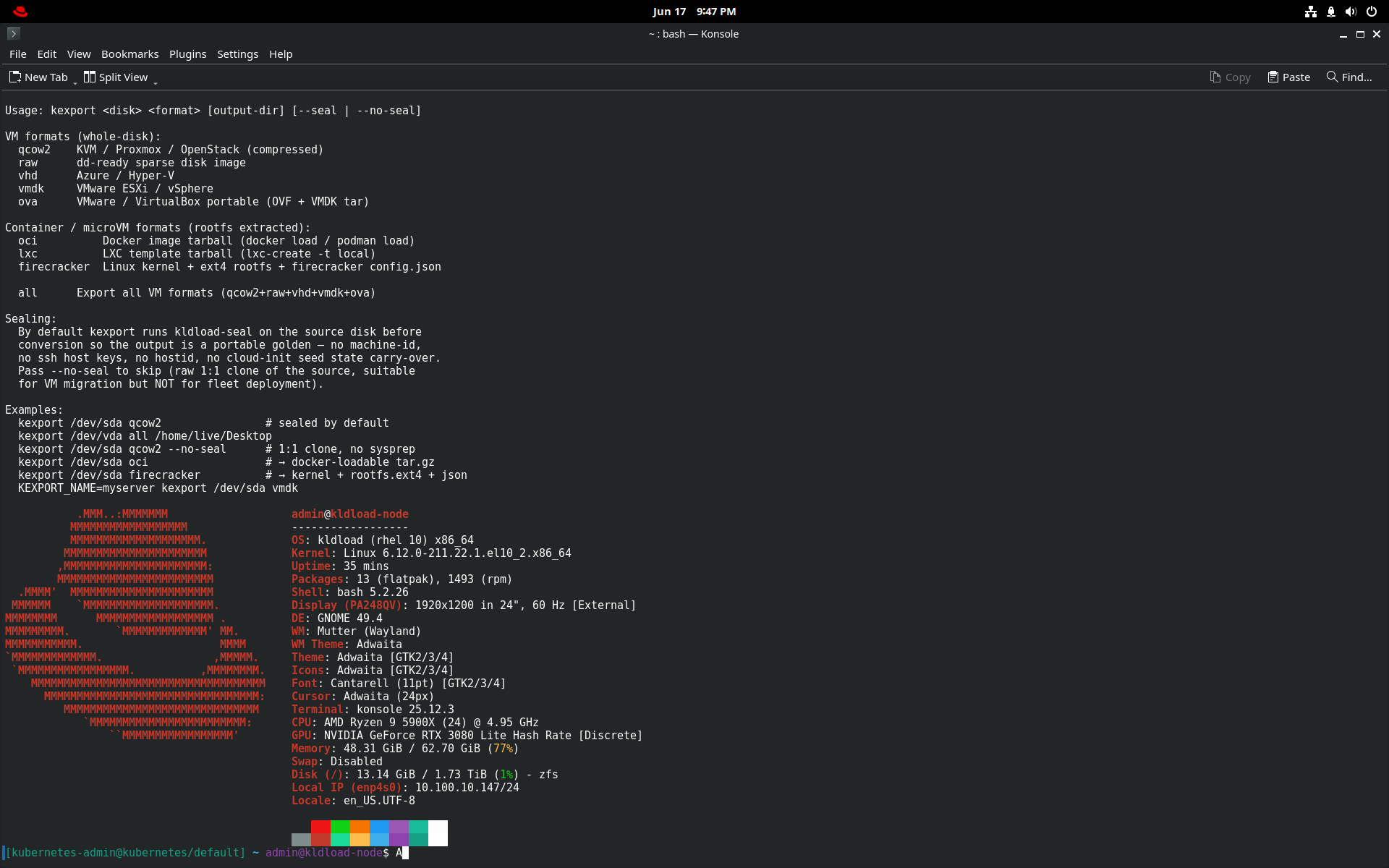
Export Disk Image
kexportTurn the install into a portable image — qcow2, VMDK, VHD, OVA or raw — ZFS-on-root, WireGuard, KVM and eBPF baked in. Use it as a Packer base or a hypervisor template; cloud-init ready.