The Kernel-Loaded Desktop
It boots into a desktop that looks like a stock RHEL 10 workstation. The wallpaper is one click away from telling you otherwise. Behind the dock is a full datacenter: a ZFS-tuned KVM hypervisor, a push-button Kubernetes cluster, an instant blue-green lab, an eBPF observability cockpit, and a local GPU AI assistant — all wired, all point-and-shoot, all on a substrate that won’t brick when you update it. This is everything the 1.3.1 desktop puts in your hands.
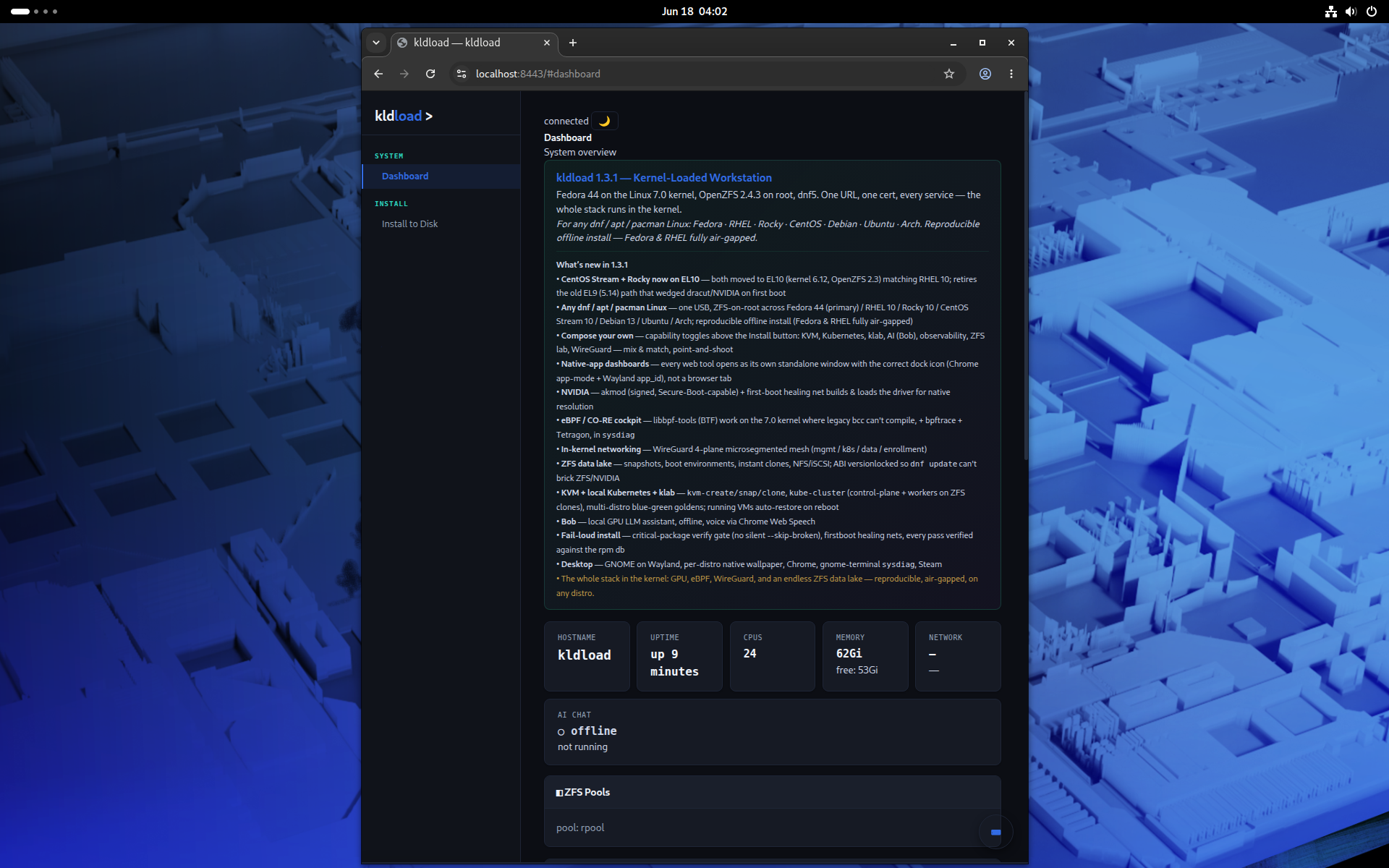
:8443 dashboard — one URL, one cert, every service behind it.KVM, tuned for ZFS from the zvol up
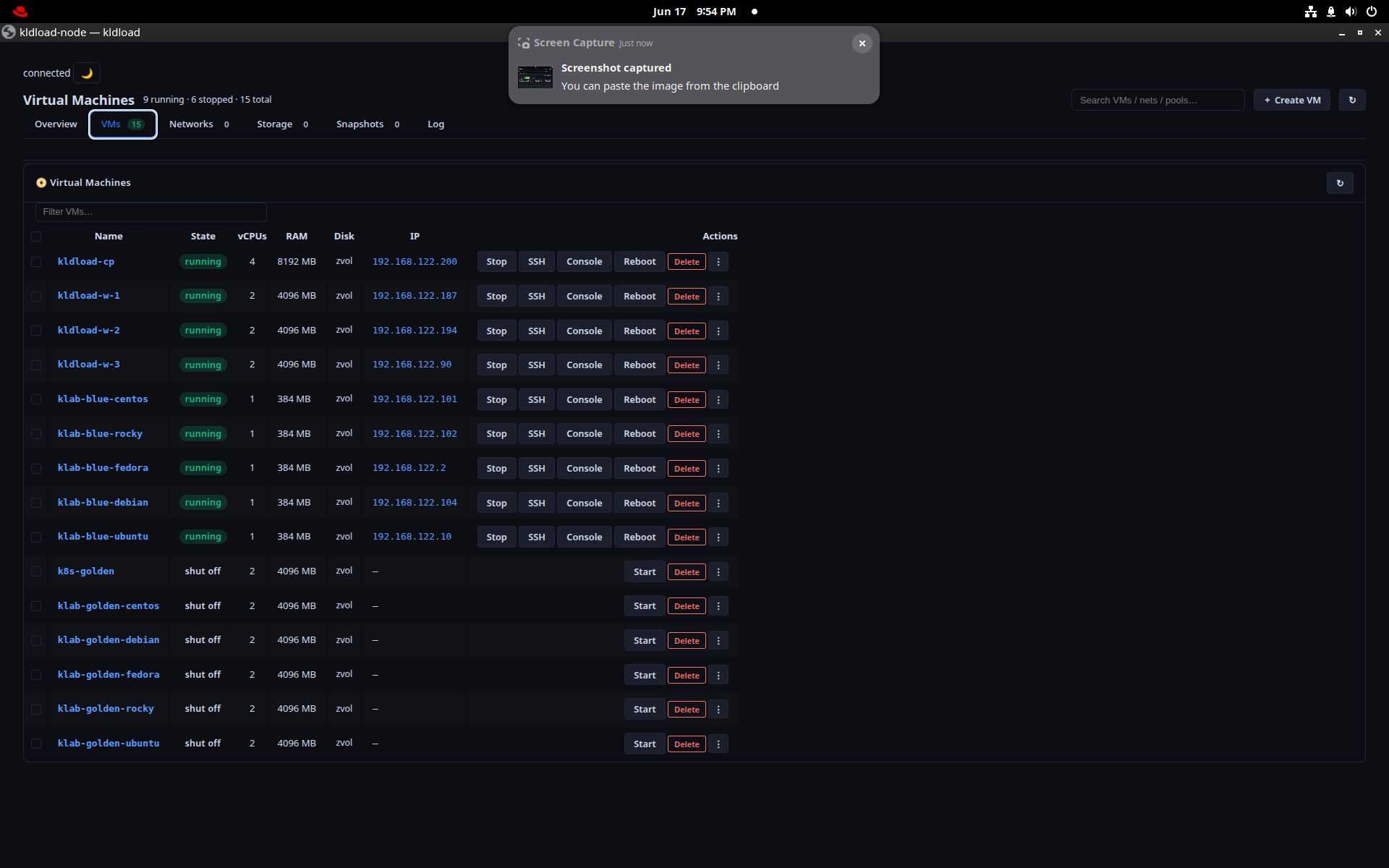
The hypervisor isn’t libvirt with ZFS bolted on the side. Every VM disk is a ZFS zvol created with the right properties for virtualization: volblocksize=64K to match the guest’s I/O, compression=off so the guest’s own filesystem stays in charge, thin provisioning so a 200 GB disk costs nothing until it’s written, and cache=none on a virtio block device so the data path is honest about durability.
Because the disk is a ZFS dataset, snapshot, replicate and backup are native operations — not a feature you buy:
kvm-create
Spin a VM on a freshly-provisioned zvol with sane defaults (--ram, --cpus, --disk, --iso, --bridge). A pre-create snapshot is taken before anything is built, so the “before” state is always recoverable.
kvm-snap
Snapshot a running VM’s zvol in milliseconds — create, list, rollback, delete. Sanoid drives automatic retention on a schedule; rollback stops the VM, rolls the zvol, and restarts it.
kvm-clone
Instant copy-on-write clone of any VM from a snapshot. A second machine in the time it takes to type the name — the clone shares blocks with its parent until it diverges.
Replication is syncoid on tap: incremental ZFS send/recv to a peer or a second pool, at whatever frequency you set. No agent, no second storage tier, no vendor. It’s how the filesystem already works.
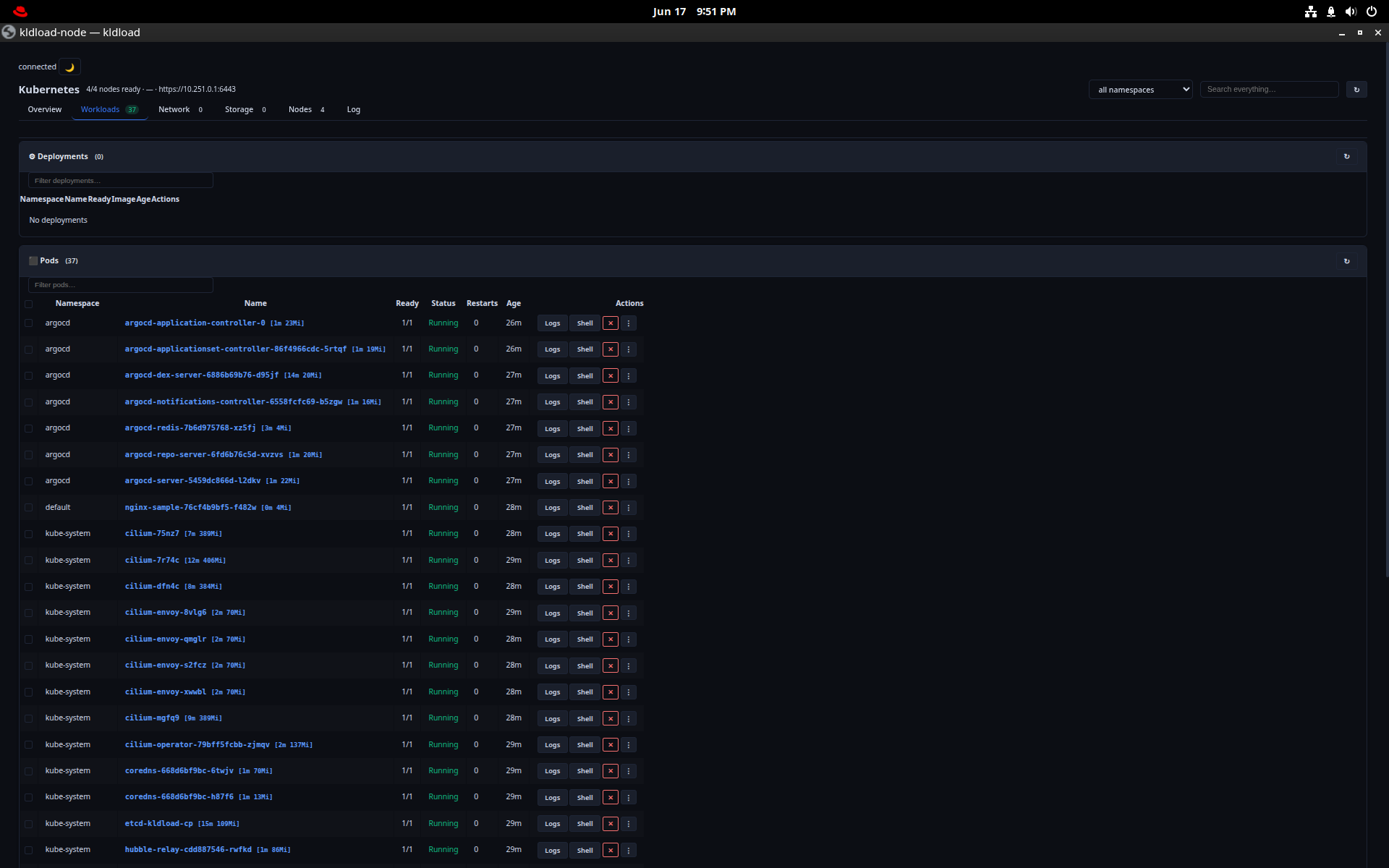
Kubernetes — a real 4-node cluster, one button
Tick Kubernetes at install (or run kube-cluster --workers 3 later) and you get a genuine multi-node cluster: 1 control plane + 3 workers, each a VM booted from a ZFS instant clone. Not a single-node toy — four nodes, scheduling, the works.
The datapath is the part worth bragging about:
- Cilium v1.16.5 as the CNI, in eBPF mode — kube-proxy is gone, service routing happens in the kernel datapath instead of iptables.
- Hubble (relay + UI) for live L3–L7 flow visibility, and Tetragon for eBPF runtime security events.
- A dual WireGuard mesh underneath: a management plane (
wg-mgmt,10.251.0.0/24) separate from the cluster data plane (wg-k8s,10.252.0.0/24). - MetalLB for real
LoadBalancerservices on your LAN.
Storage is the quiet superpower. The cluster ships a ZFS CSI driver, so every PersistentVolumeClaim is backed by a ZFS dataset on the same pool as everything else. No second storage system to operate; a Kubernetes VolumeSnapshot is a zfs snapshot, a clone is a zfs clone. Containers and their volumes sit on the same data lake as the VMs and the host — one pool, one snapshot story, top to bottom.
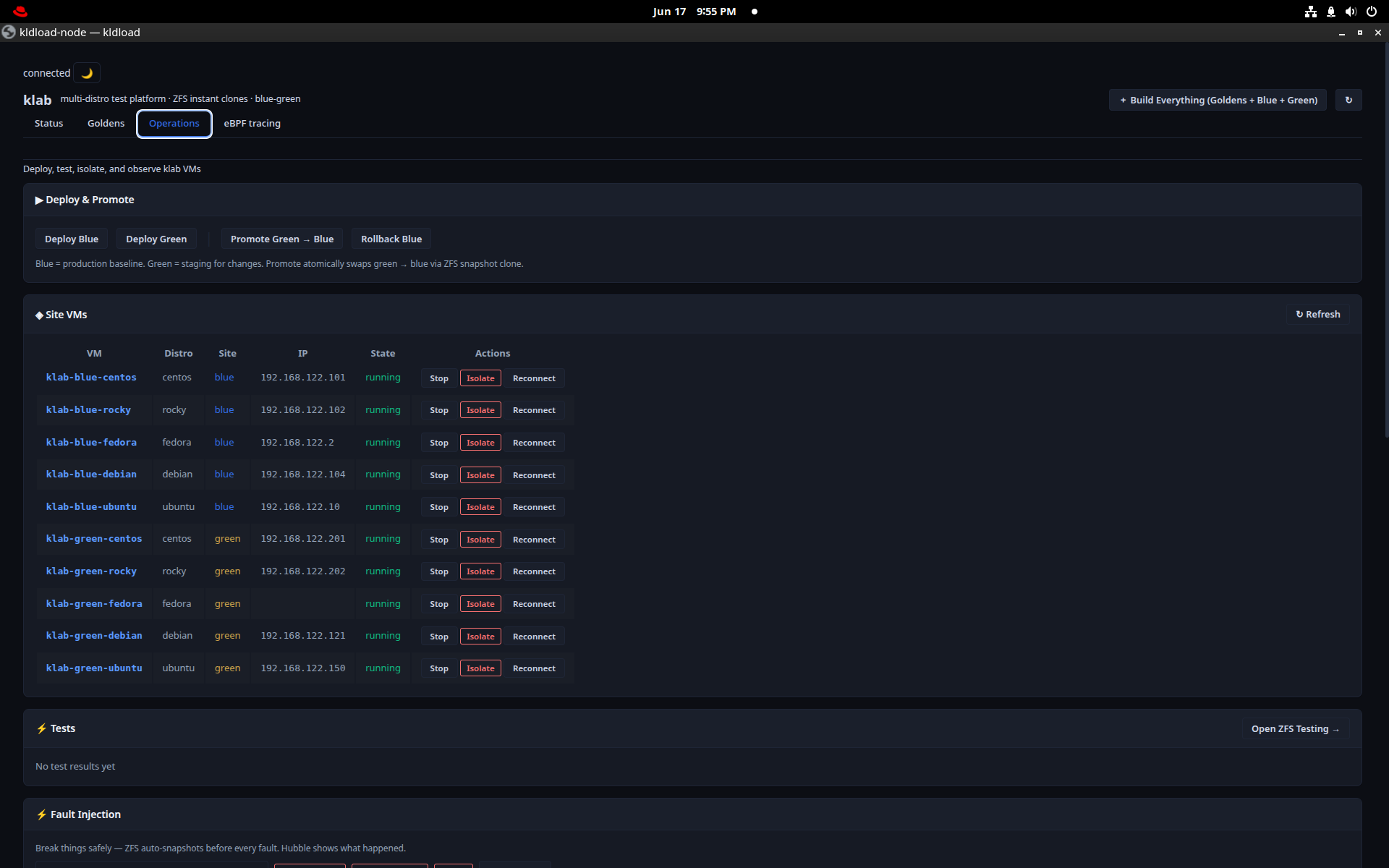
klab — instant, drift-free blue-green
klab is a real blue-green deployment lab built on ZFS clones that materialize in ~75 ms. Build a golden once — hand-baked or a stock cloud image — and every deployment is a clone of that exact golden. There is no configuration drift because nothing is re-installed; the bytes are identical until you change them.
klab golden all        # build the distro goldens once
klab deploy green      # clone goldens into the green site (milliseconds)
klab promote green     # green becomes the new blue — atomic cutover
klab rollback          # revert blue to its previous snapshot
That gives you something most shops fake with a CI pipeline and a prayer: consistent, reproducible environments and atomic clone promotion. Green is bit-identical to the golden, promotion is a pointer swap, and rollback is a snapshot away. Goldens cover CentOS, Rocky, Fedora, Debian, Ubuntu and Arch, so “works on my distro” stops being a debate.
The ZFS data lake — and why it won’t brick
The whole machine is ZFS-on-root, and the operator tools are point-and-shoot:
ksnap
Snapshots without the zfs syntax — create, list, roll back, destroy. The same engine sanoid uses for automatic 15-minute / hourly / daily / monthly retention.
kclone
Copy-on-write clone of any dataset — near-instant, near-zero space until it diverges.
kst
System health at a glance: pool status, capacity, snapshot counts, boot environments, service state — one screen.
Point-and-shoot replication. syncoid handles incremental replication to a peer or a second pool on a schedule you choose with one flag — full backups that are just snapshots shipped over the wire.
Versionlocked so an update can’t brick you. The ABI-coupled substrate — kernel, kernel headers, the OpenZFS modules, the NVIDIA driver and the eBPF/bpf tooling, plus the bootloader and shim — is held at first boot. A routine dnf update / apt upgrade can never jump the kernel out from under ZFS and leave you unable to import your root pool. Five rescue kernels are kept.
Instant rollback if it ever does go wrong. Boot is ZFSBootMenu, not GRUB. Every boot environment is a snapshot; pick a previous one from the boot menu and you’re back, in seconds, no reinstall. Snapshot before a package transaction, roll back after a bad one.
A desktop built for development
GNOME on Wayland, each distro wearing its own native wallpaper, with the apps a developer actually reaches for already in place:
- Chrome as the first-class browser — and the engine behind every tool window (each dashboard opens as its own chromeless app window with the correct dock icon, not a browser tab).
- Steam (Flathub) and full NVIDIA proprietary drivers via signed akmod — Secure-Boot-capable, with a first-boot healing net that builds and loads the driver for native resolution. The GPU feeds your games, your VMs and the local AI all at once.
- gvim, gnome-text-editor, konsole, and the full font + codec stack.
- Bob — a local, GPU-resident LLM served by Ollama, fully offline, no data leaving the box.
Realtime eBPF sysdiag — the dev companion
kldload-sysdiag is a tmux cockpit that turns the kernel inside out in real time — the perfect bench partner for testing code, chasing a regression, or just seeing what the network is doing. eBPF, CO-RE/BTF, on the modern 7.0 kernel where legacy BCC can’t even compile. F-keys toggle panels:
- F5 disk —
biosnoop,biolatency,fileslower,zfsdist. - F6 syscalls —
execsnoop,opensnoop,killsnoop,syscount,capable. - F7 TCP —
tcpconnect,tcpretrans,tcplife. - F8 net · F10 ZFS · F11 kernel-stress · F12 bandwidth — plus Alt+letter heads-up popups for uptime / memory / disk / network / ZFS.
That’s networking and storage visibility most teams pay a vendor for, sitting in a terminal, out of the box — and the assistant can drive the same panels on request.
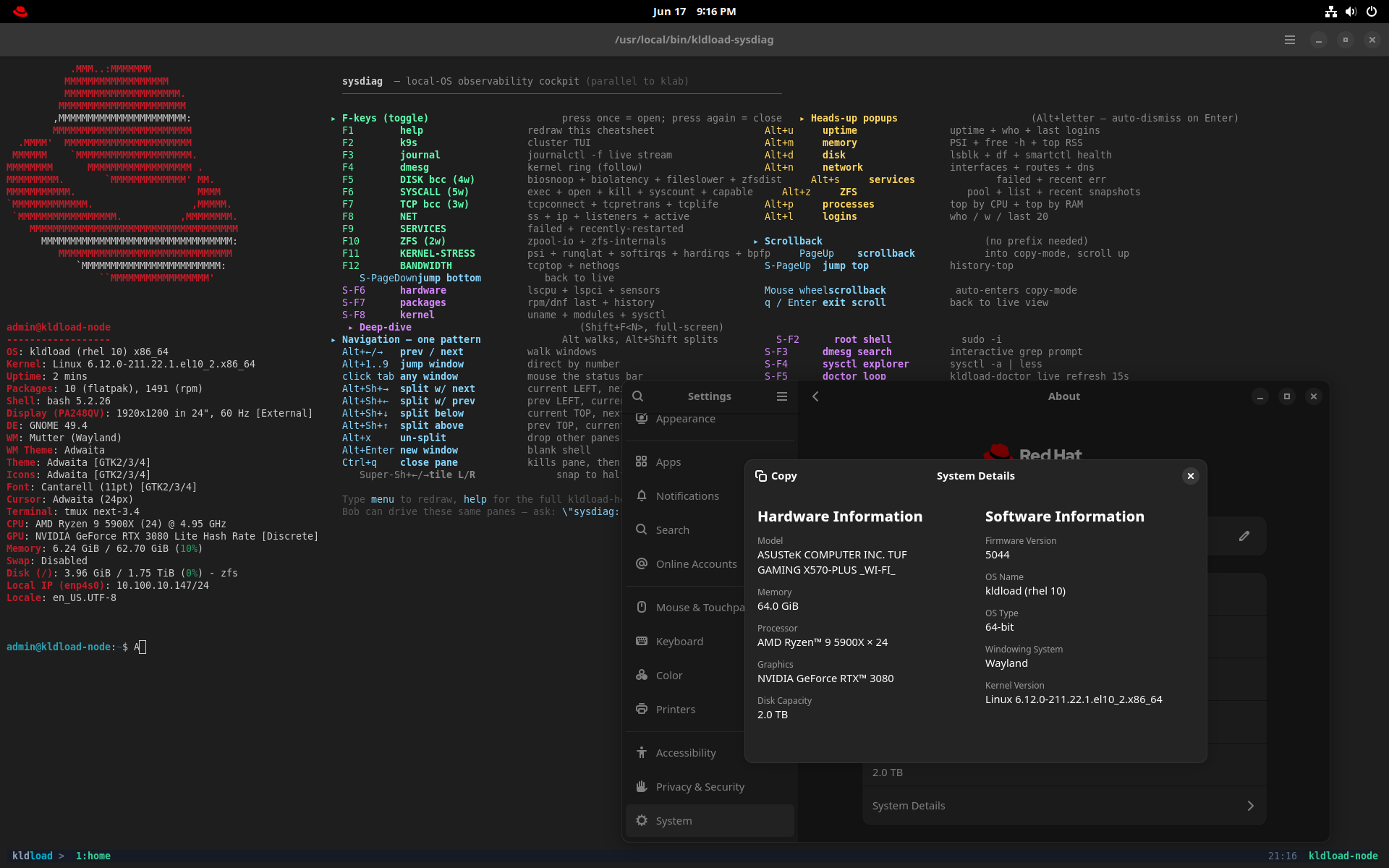
kldload-sysdiag — the kernel-loaded cockpit, F-keys for every eBPF lens.Navigation: fast, simple, the same every time
Four static workspaces in a fixed “+” compass layout — they never reshuffle, so muscle memory always lands. Three-finger touchpad swipes move between them the GNOME-native way; the keyboard does the rest with one modifier per job:
| Layer | Keys | What it does |
|---|---|---|
| Switch workspace | Ctrl+Alt + ↑ ← → ↓ | Jump to workspace 1–4 (North/West/East/South). |
| Move window | Super + ↑ ← → ↓ | Send the focused window to that workspace. |
| Shape window | Super+Shift + ↑ ← → ↓ | Maximize / tile-left / tile-right / minimize. |
| Close | Alt+Q | Universal window close (also Alt+F4). |
| Overview | Super+S / Super+A | Activities overview / application grid. |
| tmux panes | Alt + ↑ ← → ↓ | Move between panes (resize with Shift + arrows). Prefix is Ctrl+A. |
| tmux windows | Alt+1…9, Alt+H / Alt+L | Select window by number; previous / next window. |
One rule to remember: Ctrl+Alt moves you, Super moves the window, Alt drives tmux. Distinct modifiers per layer means nothing collides and nothing is ambiguous — fast and intuitive whatever your ability.
The whole stack, in the kernel
GPU, eBPF, WireGuard, KVM and an endless ZFS data lake — reproducible, air-gappable, on any dnf / apt / pacman distro. It looks like the desktop your org already trusts. It just happens to have a datacenter behind the dock.
Every built-in tool
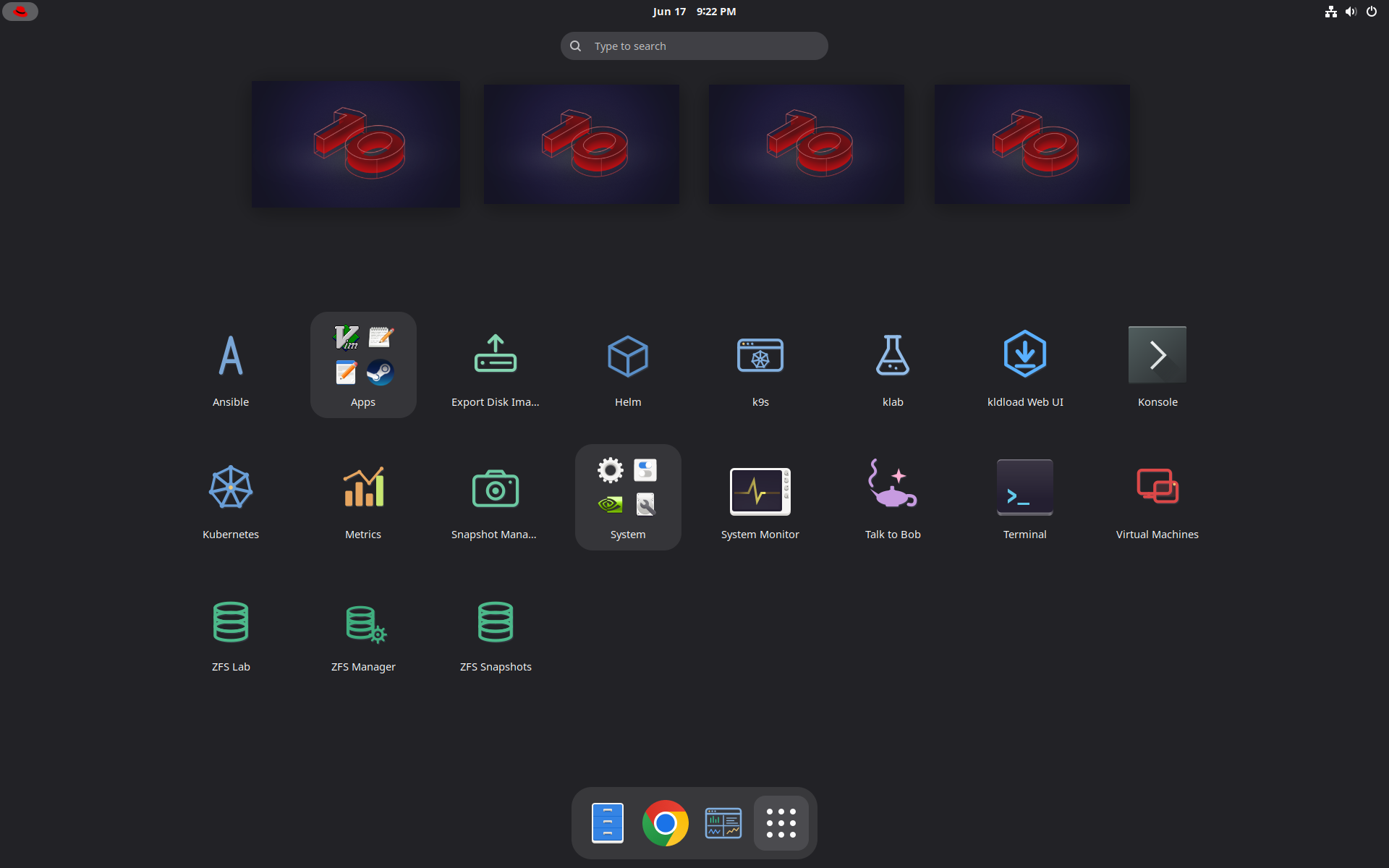
Nothing above is an add-on. Every application below ships on the desktop, wired to the same ZFS pool and the same :8443 control plane — most opening as their own native app window with the correct dock icon, not a browser tab. Browse by category; click any shot to enlarge.
Control plane
One URL, one TLS cert, every internal service behind it. The web UI is the front door to the whole machine.
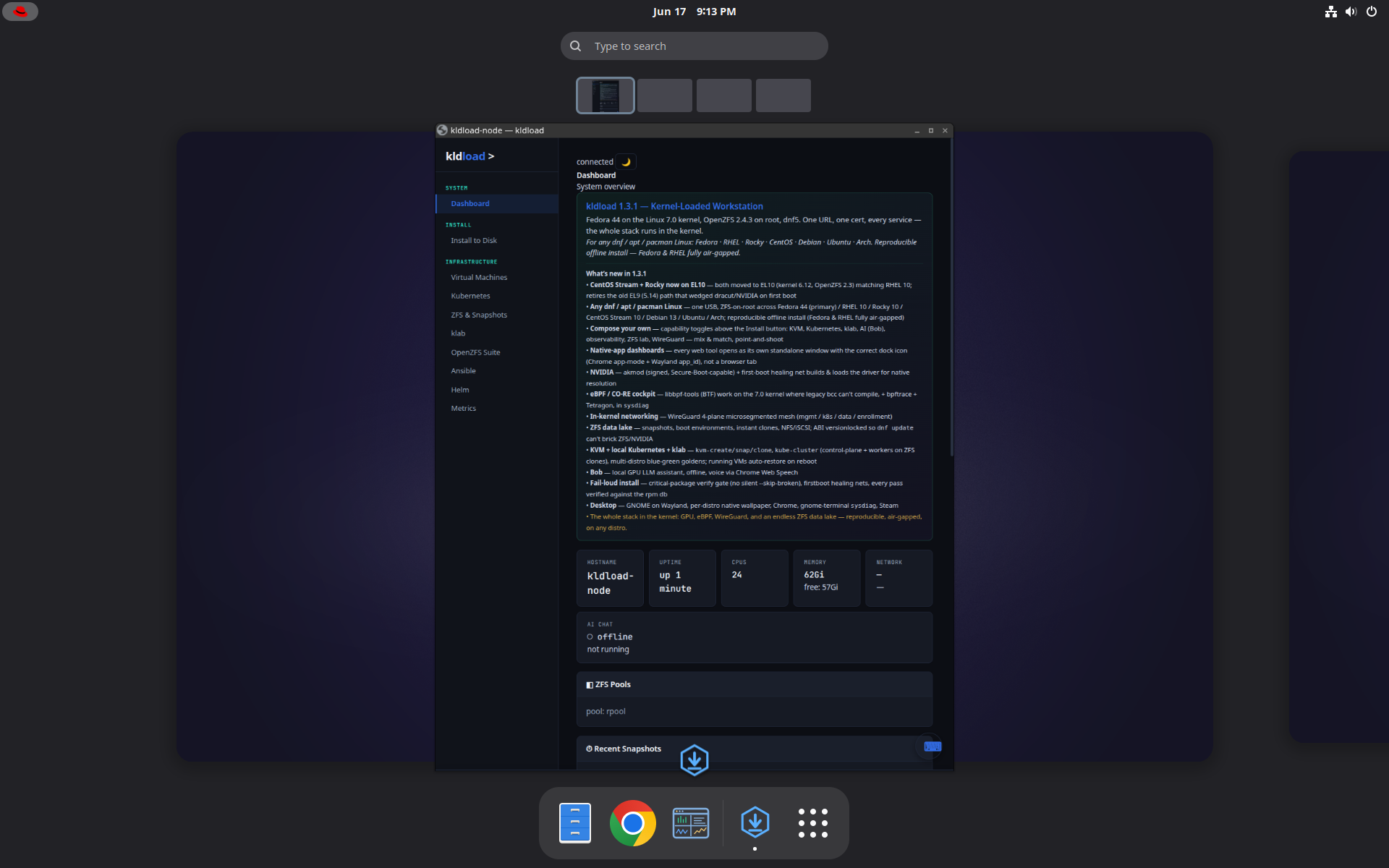
kldload Web UI
https://<host>:8443The single-pane control plane: live system overview, ZFS pools, VMs, Kubernetes, klab, metrics and the installer — all fronted by one nginx HTTP/2 TLS reverse proxy that also carries Grafana, Headlamp, k9s and the libvirt console.
Storage & ZFS
The machine is ZFS-on-root. Snapshots, replication, boot environments and pool health — all point-and-shoot, no zfs syntax required.
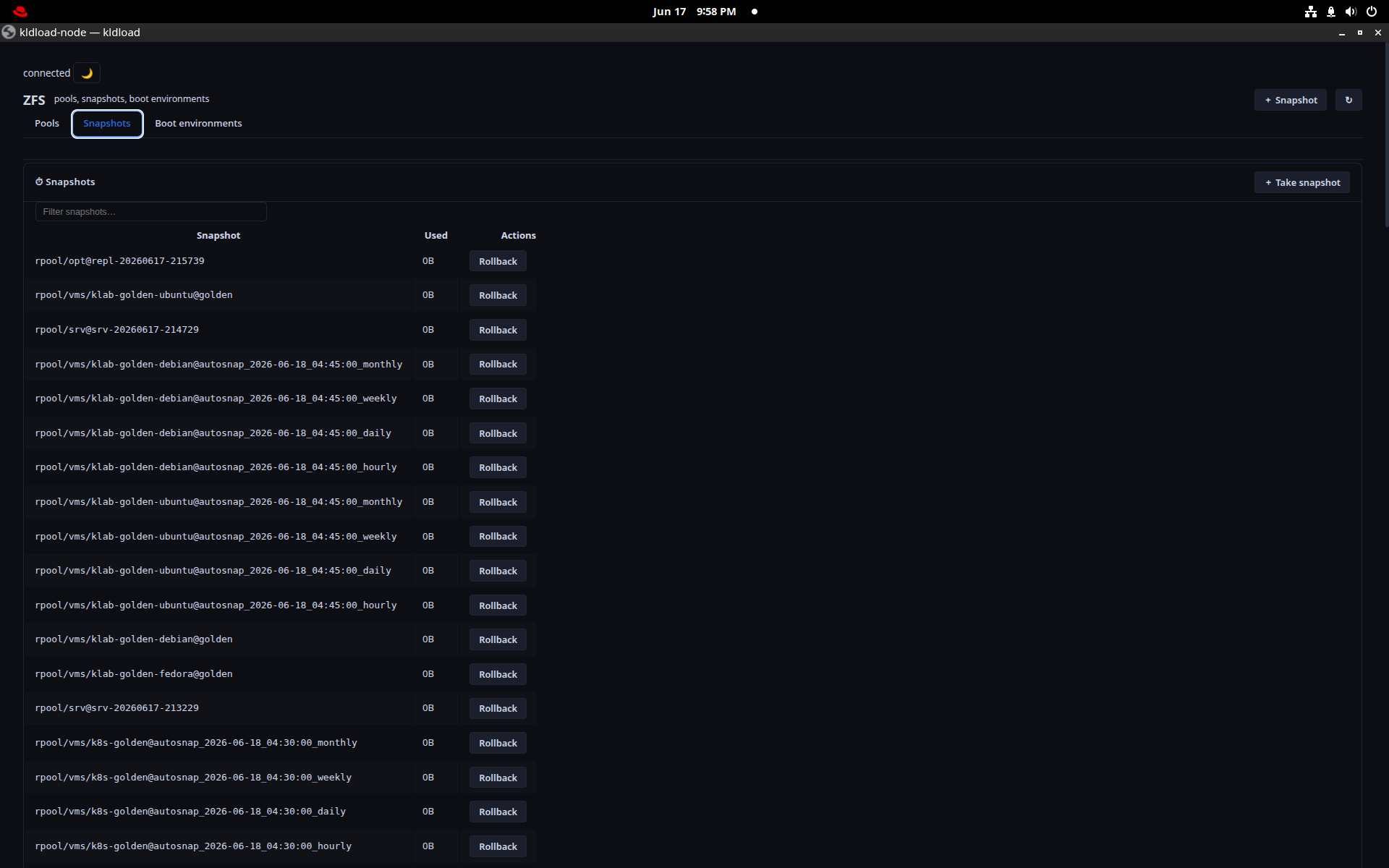
ZFS Snapshots (ksnap)
ksnapEvery snapshot on the box with a one-click Rollback. The same engine sanoid uses for automatic 15-min / hourly / daily / monthly / yearly retention — the dense list is what “automatic” looks like after a day of uptime.
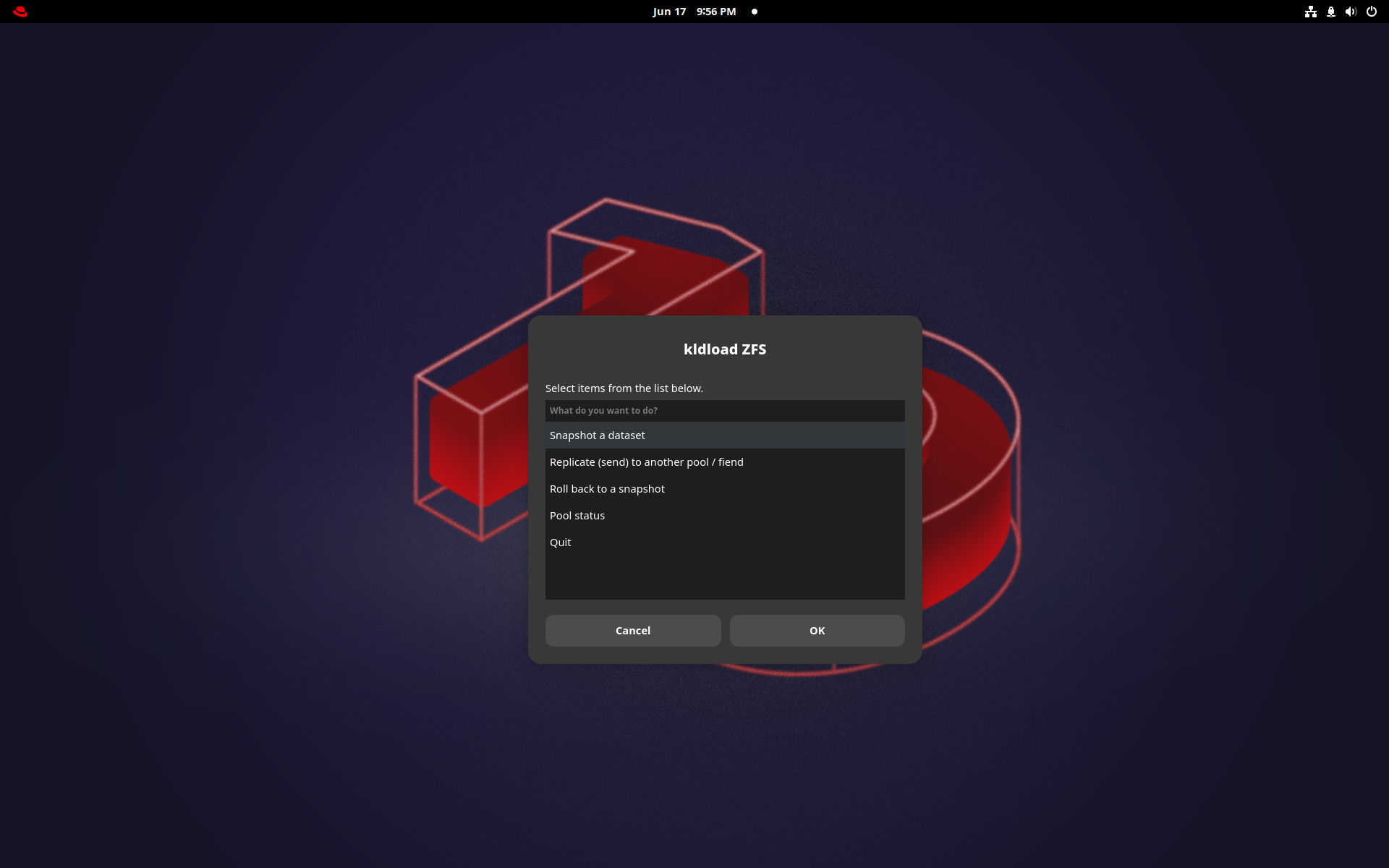
ZFS Manager
A point-and-shoot front end for everyday pool and dataset work — snapshot a dataset, replicate, roll back, check pool status — without dropping to a shell.
ksnap for scripting.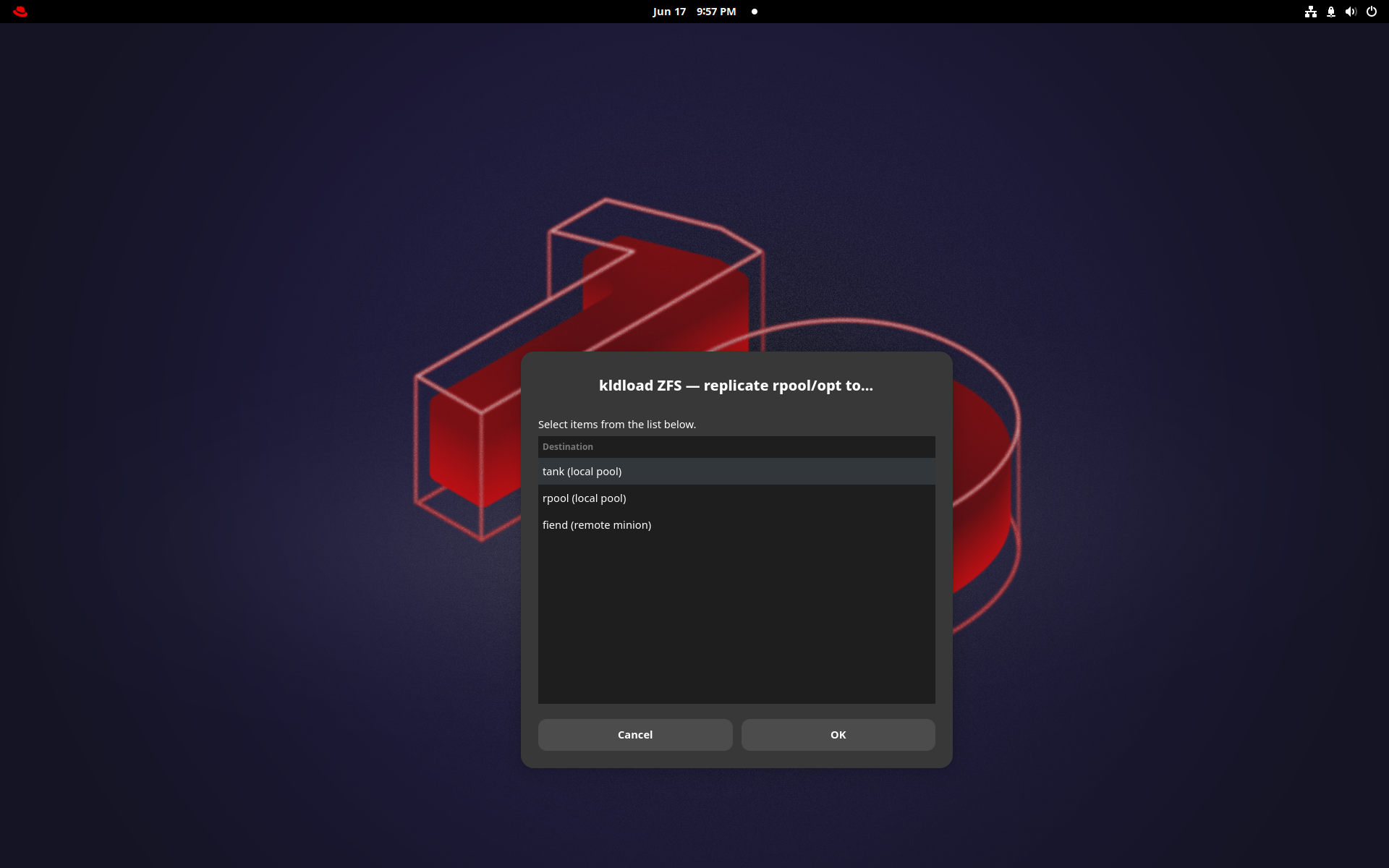
Point-and-shoot replication
Replicate any dataset to a second pool or a remote host in a couple of clicks — syncoid incremental send/recv underneath. Backups that are just snapshots shipped over the wire; no agent, no vendor.
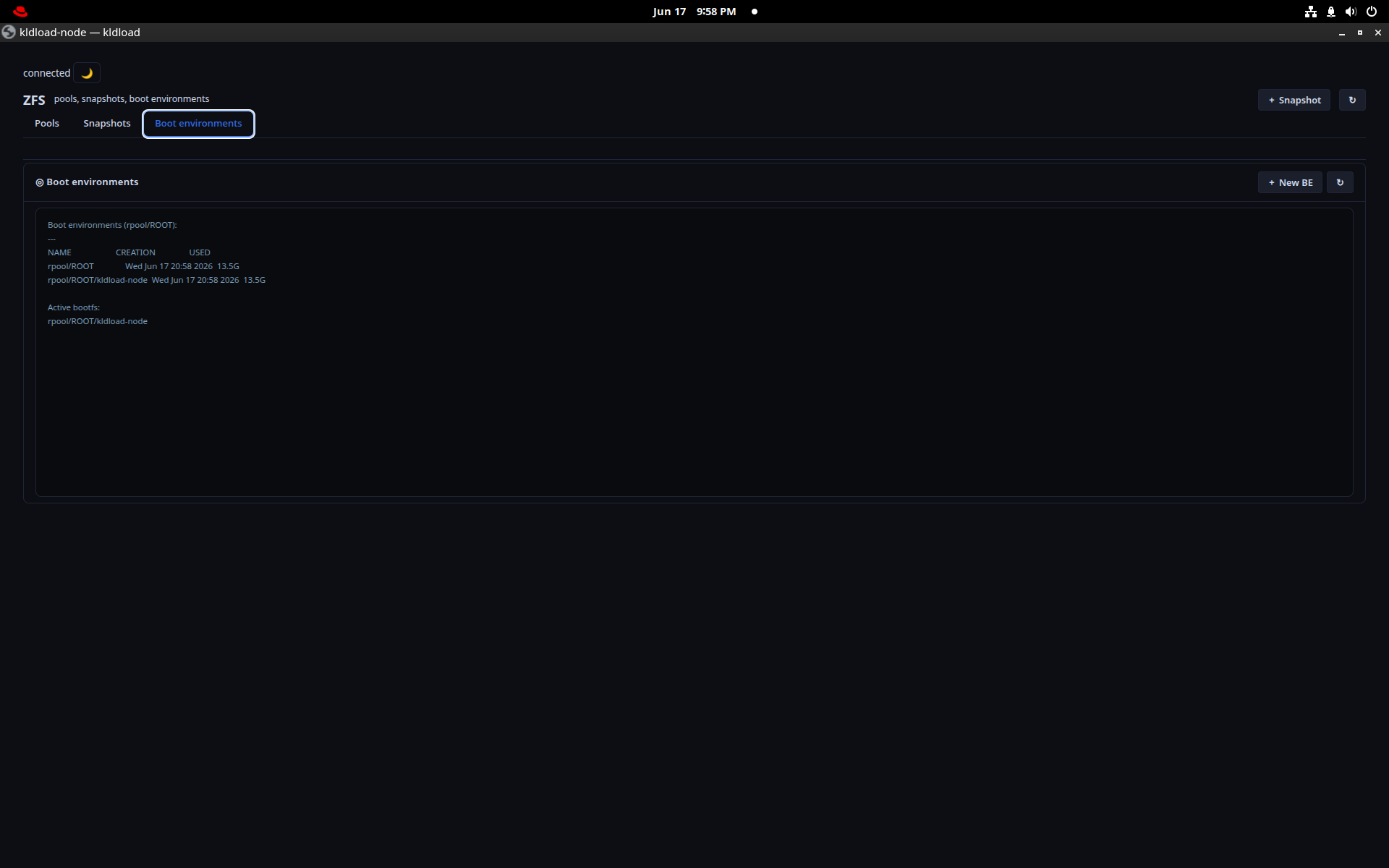
Boot Environments
Every boot environment is a ZFS snapshot. Browse them here; pick a previous one from ZFSBootMenu at boot and you’re back in seconds — no reinstall after a bad upgrade.
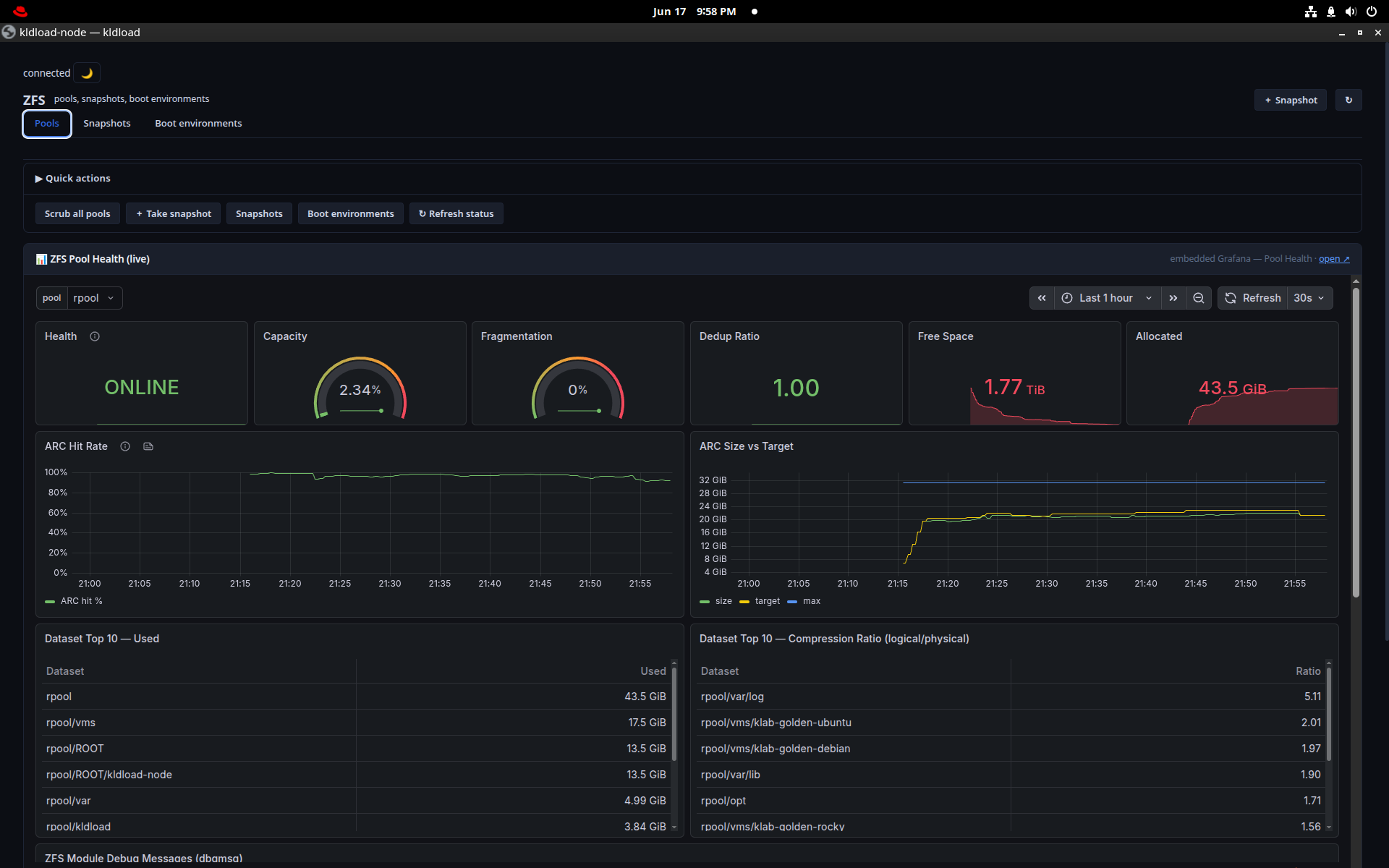
ZFS Pool Health
Live pool telemetry: ONLINE state, capacity, fragmentation, dedup ratio, free space, ARC size vs target, top datasets by use and compression ratio — a Grafana board fed straight from the pool.
Virtualization
A KVM/libvirt hypervisor tuned for ZFS from the zvol up — every VM disk is a ZFS dataset, so snapshot, clone and replicate are native.
Virtual Machines
Inventory, networks, storage pools, per-VM Snap / Rollback / Clone, SSH and an embedded console — every VM on its own ZFS zvol. Running VMs auto-restore after a host reboot; stopped stay stopped.
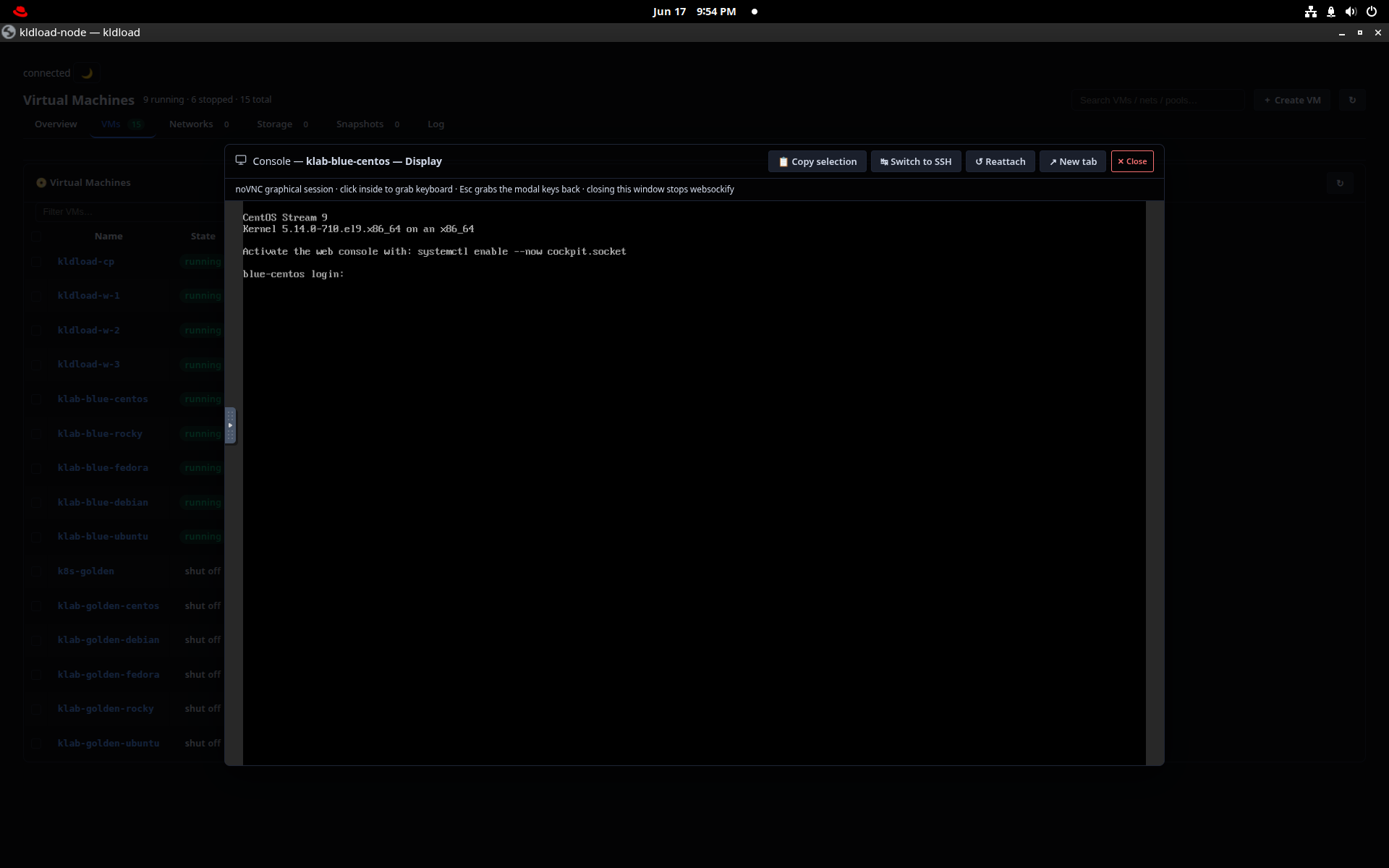
VM Console
A full serial console to any VM, embedded right in the web UI over the same ttyd session — no separate VNC client, no extra port to open.
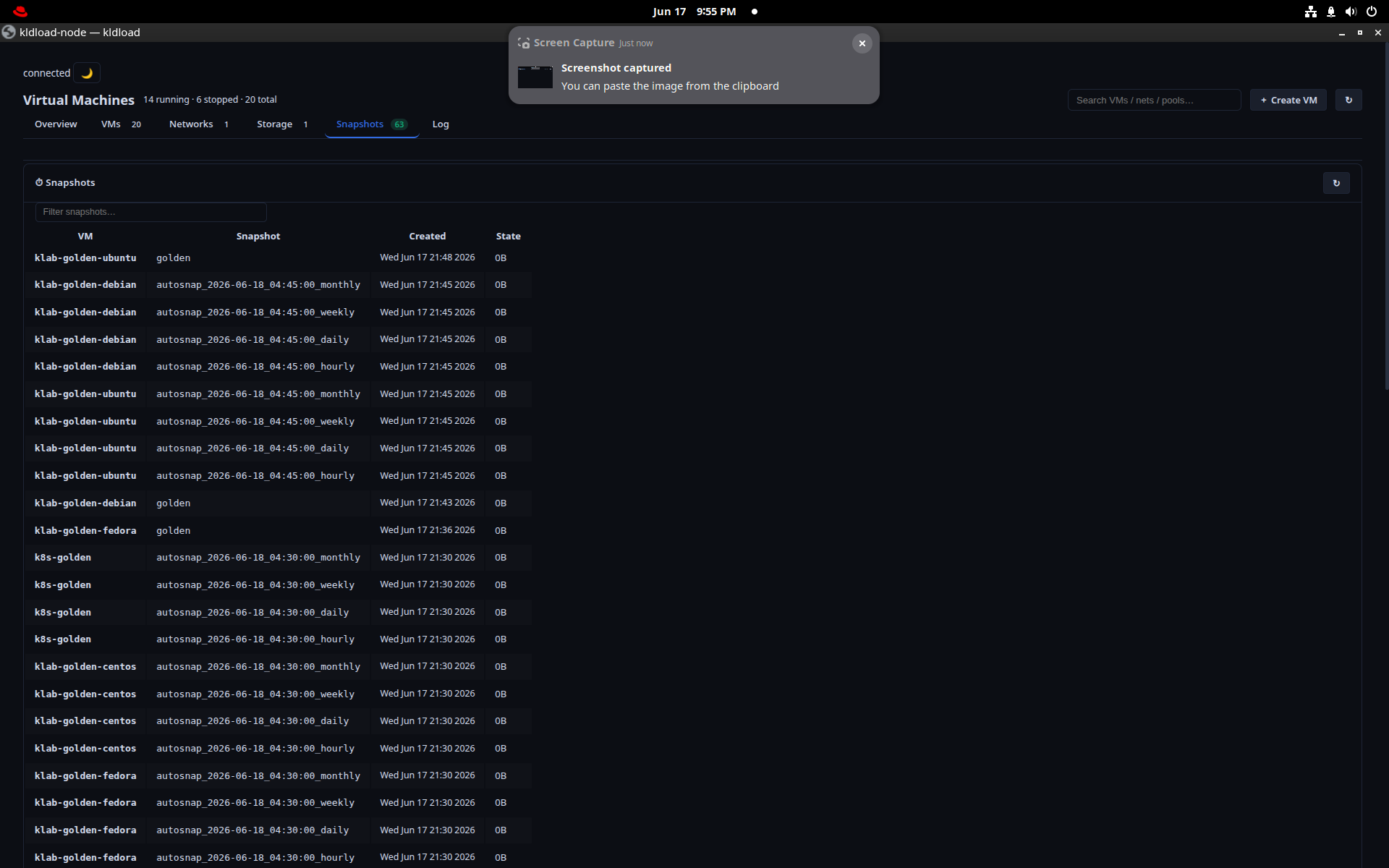
VM Snapshots & Clone
Automatic per-VM zvol snapshots on a sanoid schedule, plus instant copy-on-write clones (kvm-clone) — a second identical machine in the time it takes to type the name.
Kubernetes
A real 1 control-plane + 3 worker cluster on ZFS-clone VMs, with a Cilium eBPF datapath and ZFS-backed persistent volumes.
Kubernetes dashboard
Overview (Tetragon + Hubble panels), Workloads, Network (the full eBPF datapath), Storage (ZFS-backed PVCs / PVs / VolumeSnapshots), and Nodes — control plane and workers with live resources.
VolumeSnapshot here is a zfs snapshot underneath — same snapshot story as the host.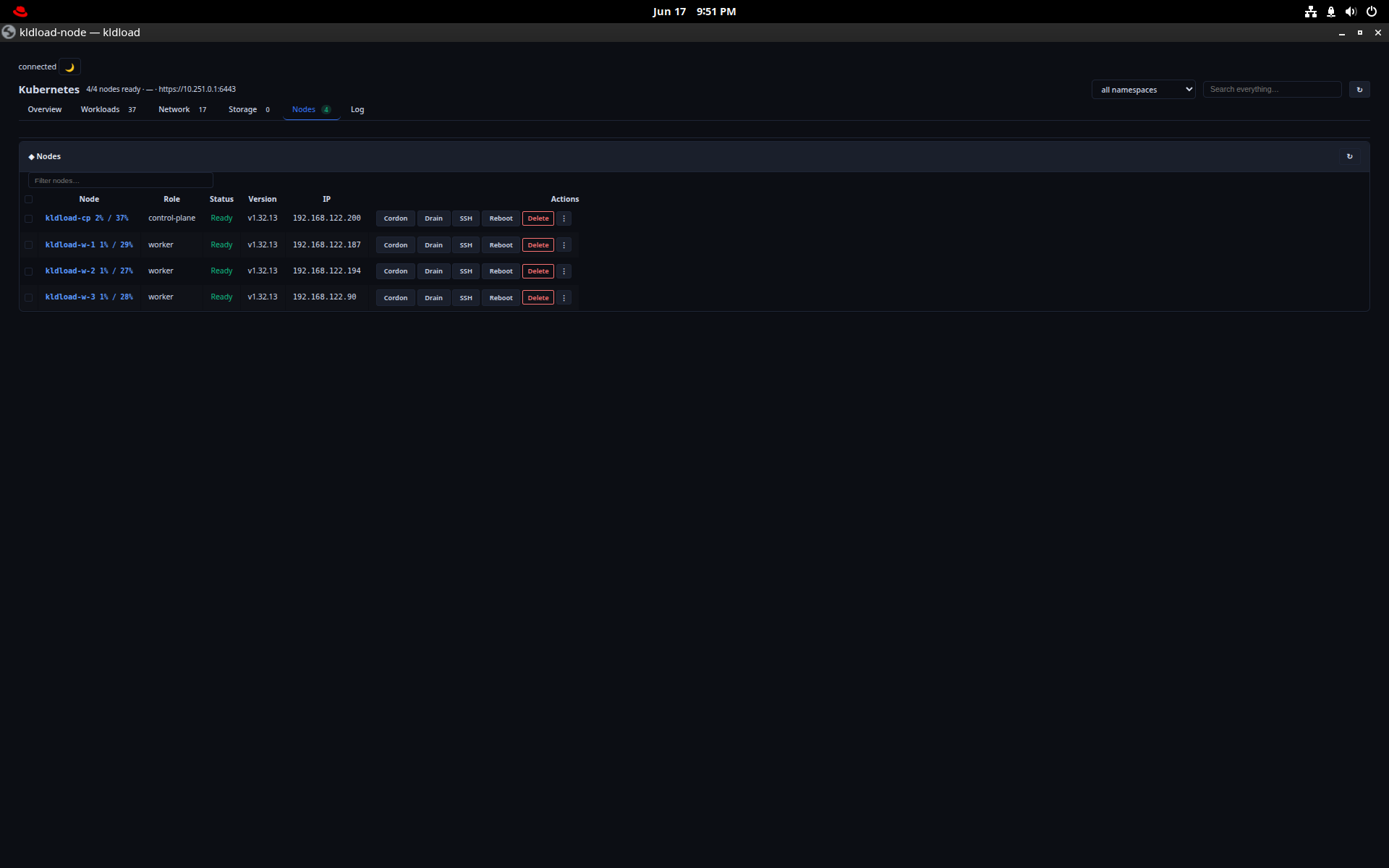
kube-cluster
kube-cluster --workers 3Bootstraps the whole cluster from ZFS clones: Cilium v1.16.5 in eBPF mode (no kube-proxy), Hubble, Tetragon, MetalLB, and a dual WireGuard mesh (mgmt + data planes). Tick Kubernetes at install and this runs for you.
kubectl get nodes shows 4.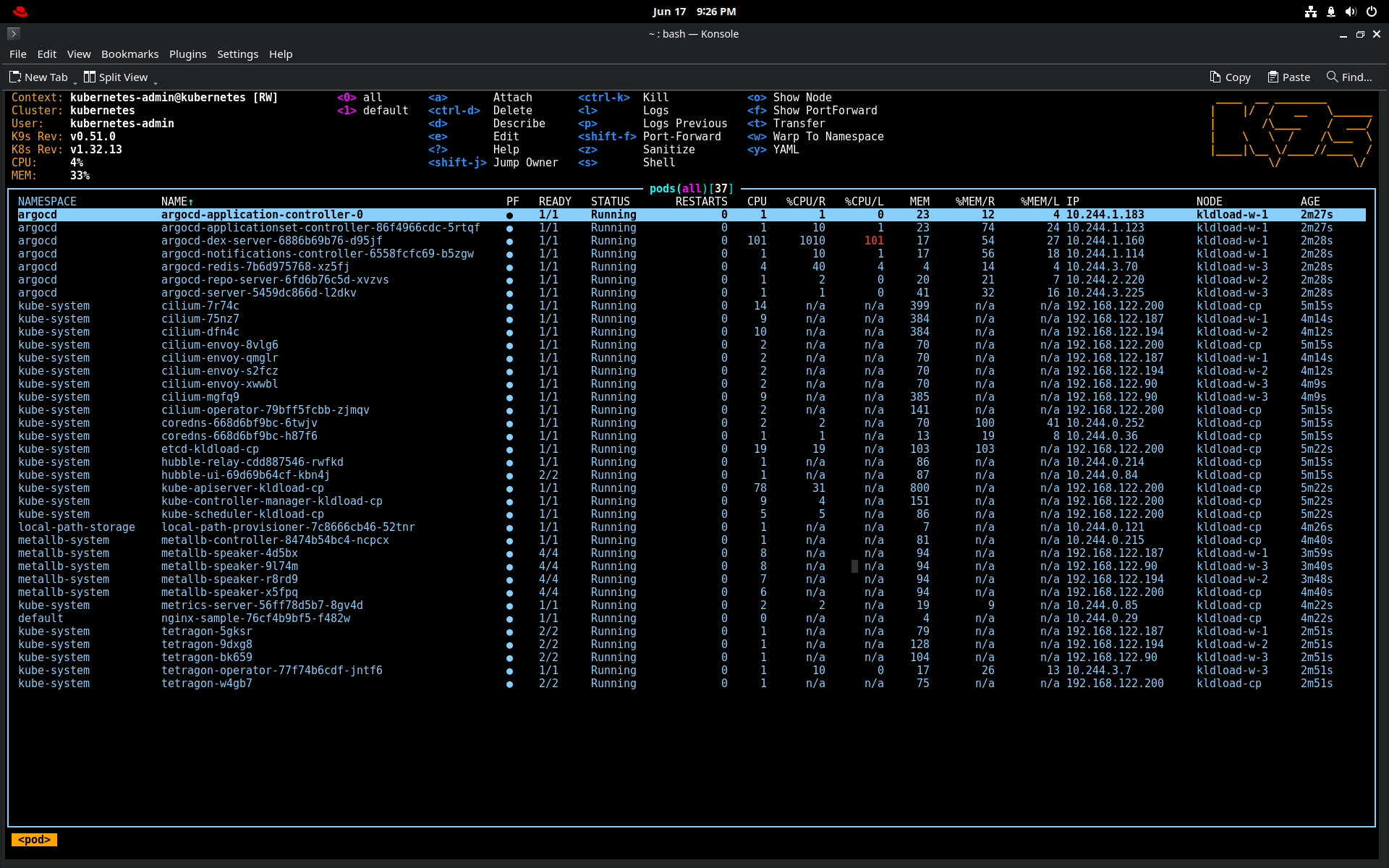
k9s
k9sThe terminal Kubernetes UI for fast navigation of pods, logs, exec and resource editing — embedded in the web UI via ttyd, or straight from a shell.
: then a resource (:deploy, :svc) jumps anywhere instantly.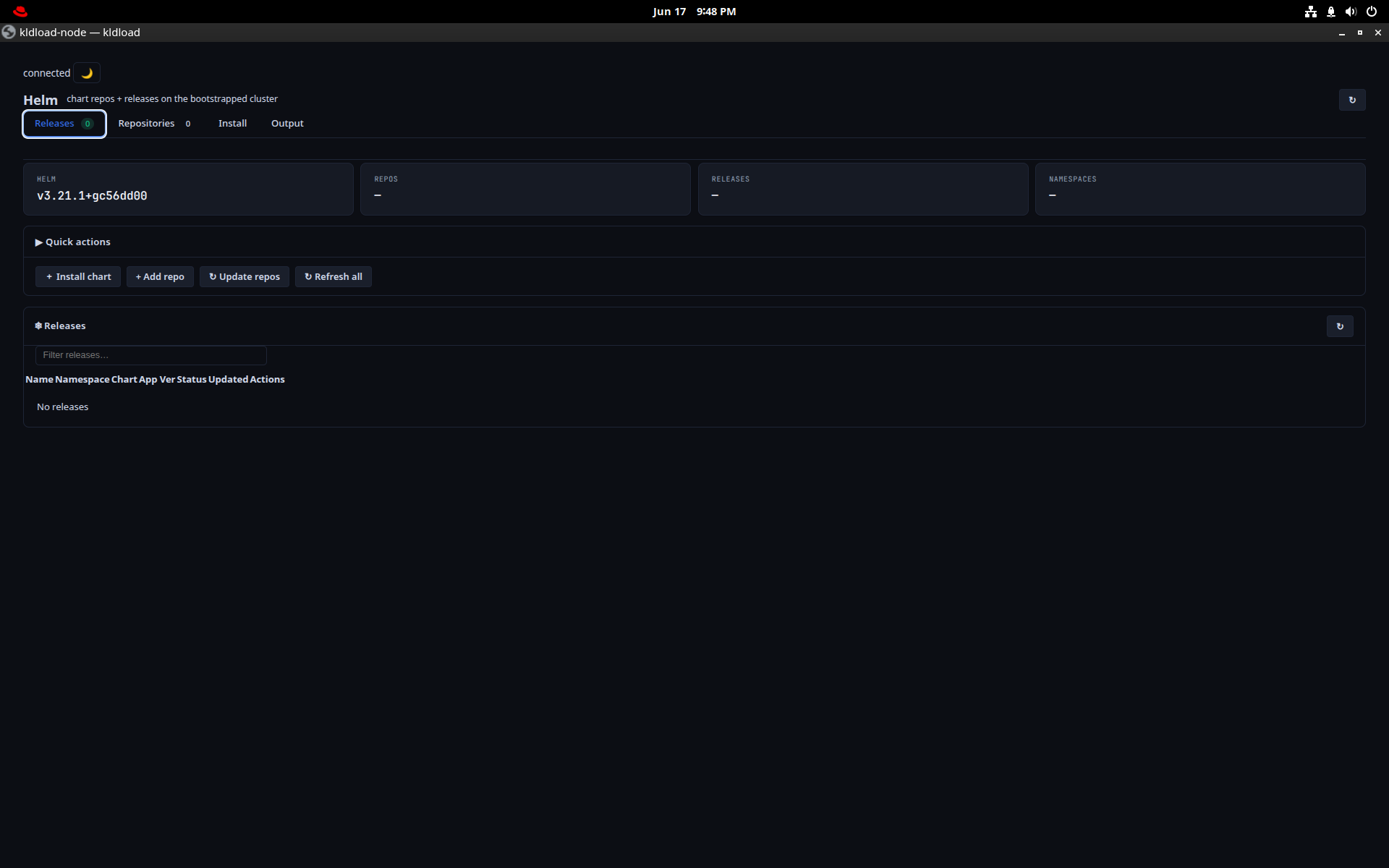
Helm
helmPackage management for the cluster — browse repositories, install and upgrade charts against the local cluster from a desktop window.
helm list -A.Automation & Lab
Reproducible environments and configuration management — instant blue-green clone promotion and Ansible, both built in.
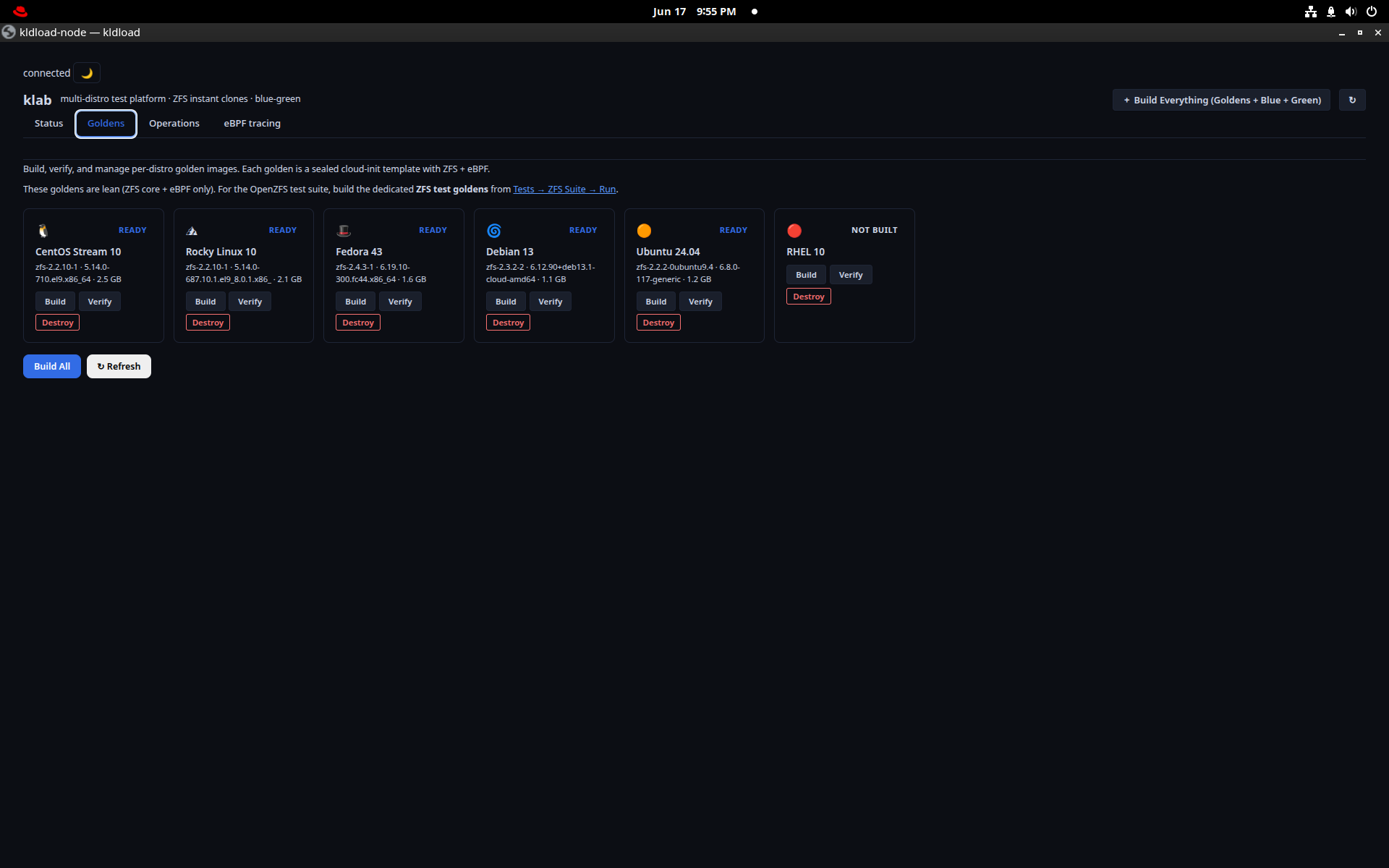
klab — goldens
klab golden allBuild a golden image once per distro — CentOS, Rocky, Fedora, Debian, Ubuntu, RHEL — then every deployment is a ZFS clone of that exact golden (~75 ms). No re-install means no configuration drift.
klab — blue/green
Deploy blue or green from the goldens, promote green to blue with an atomic pointer swap, roll back to a snapshot, and fire pre-built fault-injection scenarios to rehearse recovery.
klab promote green is instant and reversible — cutover without a maintenance window.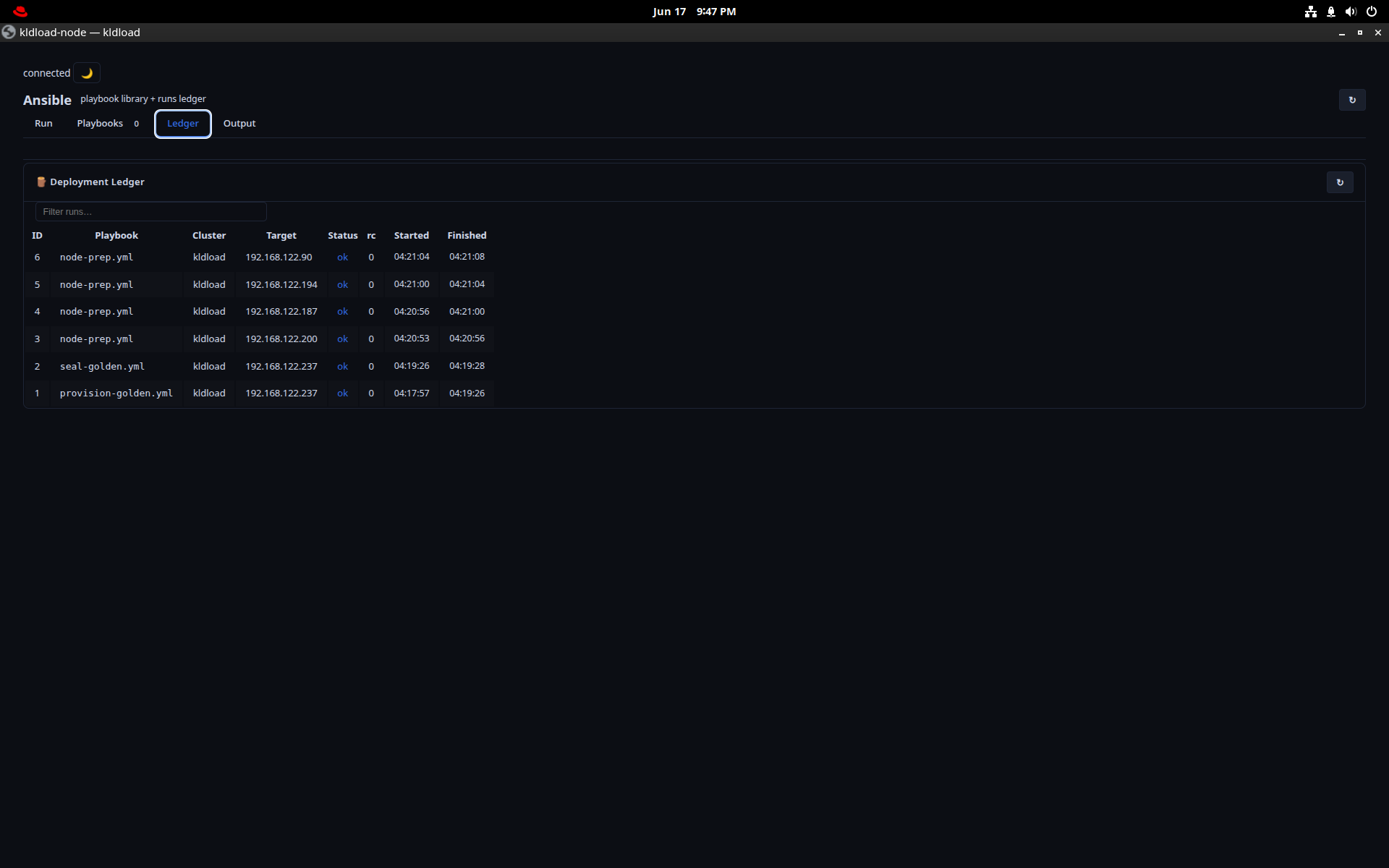
Ansible
Run playbooks against your VMs and nodes from the desktop, with a ledger of every run. The installer bakes an admin SSH key into every install, so hosts are peer-reachable out of the box.
Observability
Metrics dashboards for the whole stack, plus a realtime eBPF cockpit that turns the kernel inside out — the dev companion for testing and troubleshooting.
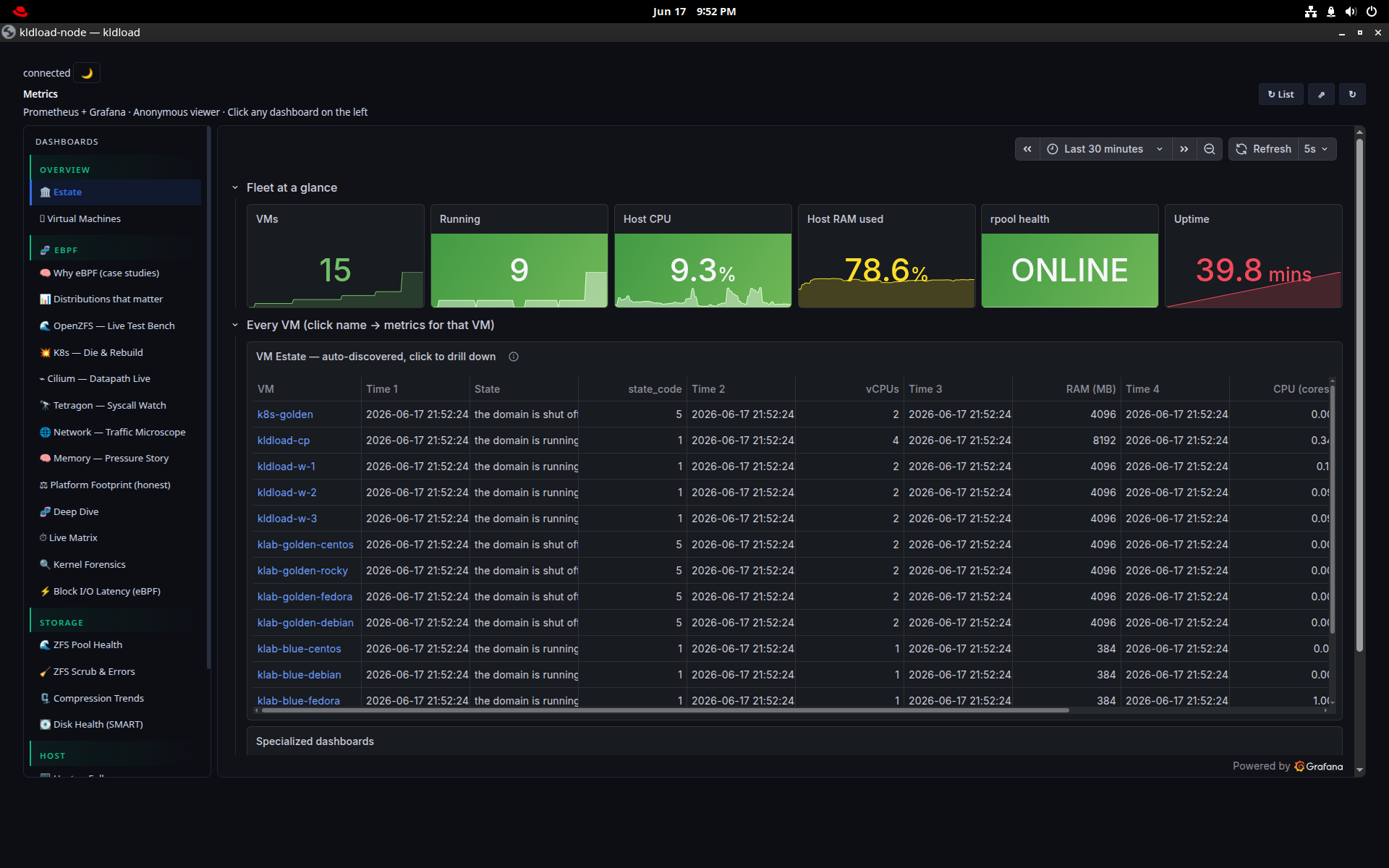
Metrics
Prometheus + Grafana + Tetragon, embedded: fleet-at-a-glance, per-VM and per-process panels, the Cilium datapath, ZFS ARC and pool stats, and eBPF-sourced security events — all on the :8443 proxy.
sysdiag — eBPF cockpit
kldload-sysdiagA tmux cockpit of live eBPF (CO-RE/BTF, works on the 7.0 kernel). F-keys toggle panels: F5 disk (biosnoop/biolatency/fileslower/zfsdist), F6 syscalls (execsnoop/opensnoop/killsnoop/syscount/capable), F7 TCP (tcpconnect/tcpretrans/tcplife), F8 net, F10 ZFS, F12 bandwidth.
AI
Bob — a local, GPU-resident LLM served by Ollama. Fully offline; nothing leaves the box.
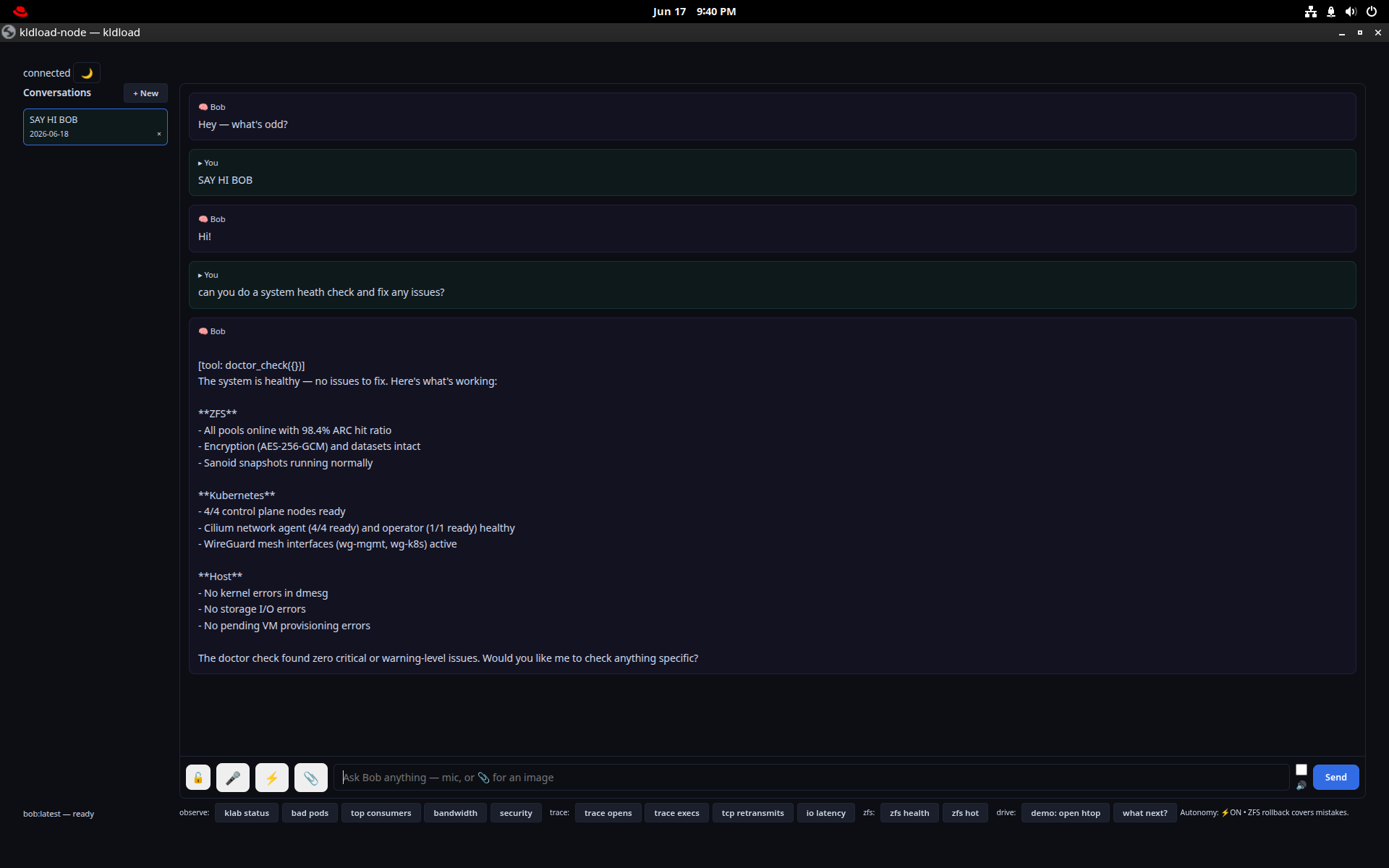
Bob
A local LLM assistant running on the GPU via Ollama, offline by design. Ask it about the system, ZFS, KVM or Kubernetes with live context — no API key, no data leaving the machine. A bobctl toggle hands the GPU back to gaming or a VM when you need the VRAM.
Desktop
GNOME on Wayland with the apps a developer actually reaches for — already installed, already configured.
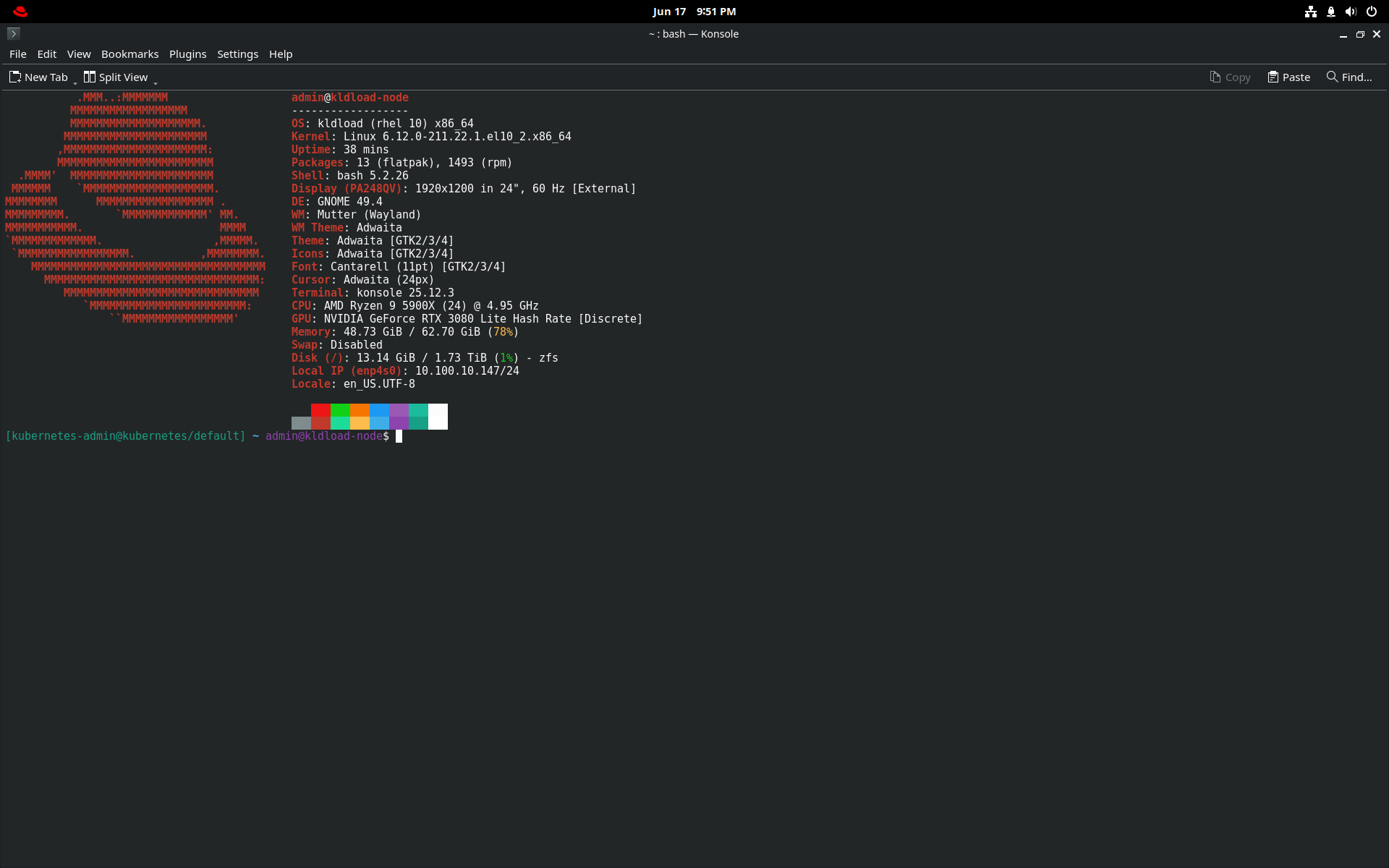
Console
The terminal, with a kldload system panel (kernel, GPU, ZFS, IP) on tap. Navigation is one modifier per job: Alt+arrows move between panes, Alt+number jumps windows, Ctrl+Q closes a pane.
Alt+Q closes the window the same way across the whole desktop.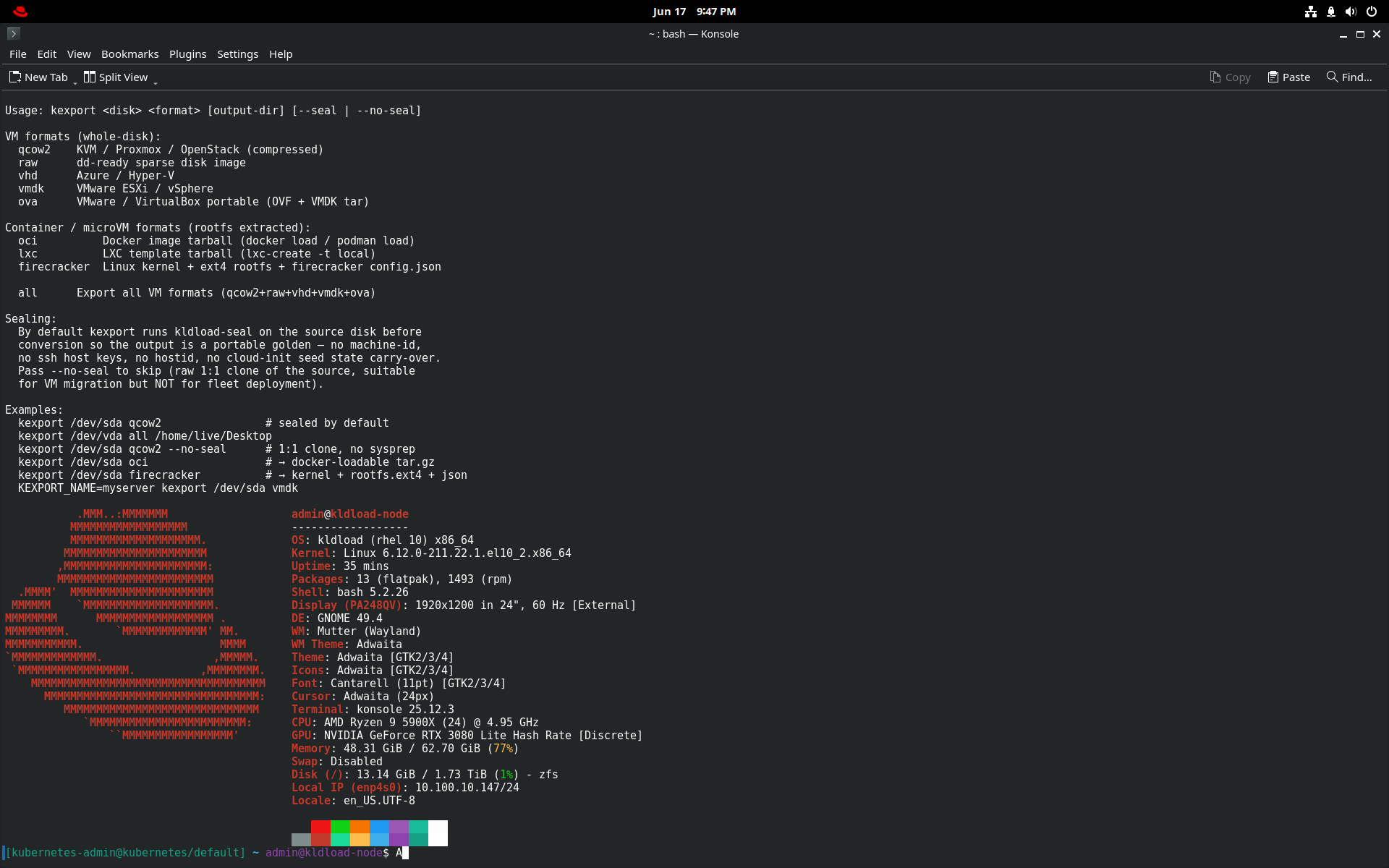
Export Disk Image
kexportTurn the install into a portable image — qcow2, VMDK, VHD, OVA or raw — ZFS-on-root, WireGuard and eBPF baked in. Use it as a Packer base or a hypervisor template; cloud-init ready.
Why I actually use it
A personal note. Everything above is what it does; this is why it’s my daily driver. I built kldload to make OpenZFS on Linux easy enough that anyone — including me — could run it without spending a quarter on configuration. The substrate is delivered on install; what you assemble on top is up to you.
1 · The bootstrap tier is obsolete
Storage, networking, observability, and GPU compute are kernel-resident before any workload boots. No agent to install, no sidecar, no cloud-init bootstrap — the first packet from a new VM is already labeled by identity in the BPF datapath, the first syscall already in Tetragon.
2 · One USB — the install procedure is also the repair key
Pick the distro at boot: about fifteen minutes to a working box, about ten to rebuild everything if it all goes “poof.” OSes around here rarely last two months before one gets nuked and rebuilt fresh — that’s not a failure mode, it’s the operating model. Every USB burn is a rehearsal of my DR plan. That’s why I sleep well at night.
3 · KVM + ZFS — the assembly factory
Sub-millisecond VM clones, because a ZFS clone is a metadata operation. Clones cost zero bytes until they diverge — a 20 GB golden cloned ten times is 20 GB on disk, not 200. Spawn ten test environments in seconds, throw them away the same minute.
4 · Storage stops being a product category
ZFS in the kernel + WireGuard in the kernel: park your data on any disk, on any AHCI controller — the host reads it locally, and every node on the mesh reaches the same data regardless of which disk it’s bolted to. “Backup” is zfs snapshot + syncoid into another node’s pool; NAS, sync, and off-site DR collapse into that one primitive. ZFS isn’t a filesystem — it changes the rules of the game in ways Linux is only starting to catch up to. Cheap cloud VMs stop being a vendor relationship; they’re just somewhere I park bytes.
5 · Observability — every packet, syscall, block I/O
Prometheus, Loki, Grafana, Tetragon, and Hubble pre-wired; metrics emitted before you log in. Plus a tmux cockpit — press an F-key and the whole panel becomes a live view of one kernel subsystem, drift-free across every distro.
6 · Bob — the AI that lives on the box
A local LLM that actually executes kubectl, zfs, and virsh, writes and applies Helm charts, and reads the monitoring — so I don’t have to. Offline, no API key, nothing ever leaving the host.
Who it’s for: engineers learning ZFS on a stable base; SREs who want a workstation that clones, snapshots, and observes in seconds; teams doing cross-distro test-and-build; and anyone tired of the userland tax — agents, sidecars, and cloud-init bootstraps of platforms that should already be there.